I don't see the same website templates OR I'm seeing more website template options and folders than what's showing up in the tutorial, how do I know which one is the right one?
You can select any website template you want to make a copy of. Depending on when you signed up for the LSS Notary Marketing Software, you may have older versions of the website templates in your account. If you do, we encourage using the newest template created under the 2026 Website Templates Folders.
I already have a website with my name on it in my account, do I still need to do this step?
Nope. We setup a website template with your name and clone it into your account for you. If you already see the cloned version on your website section, you can skip this step and jump straight into step 2 for editing your website template.
I already have a website I built on another platform (wix, squarespace, godaddy etc.) can I copy my website over from that platform and use it on the LSS Notary Marketing Software?
Unfortunately we cannot clone over websites from different platforms or services. If you'd like to take advantage of the full website builder included in your LSS Notary Marketing Software subscription, you'll need to either use the templates provided, or rebuild your existing website inside the LSS Notary Marketing Software.
Do I have to use the website builder inside the LSS Notary Marketing Software if I already have my own website?
Nope! If you have a website you already use and love, you can skip this entire module.
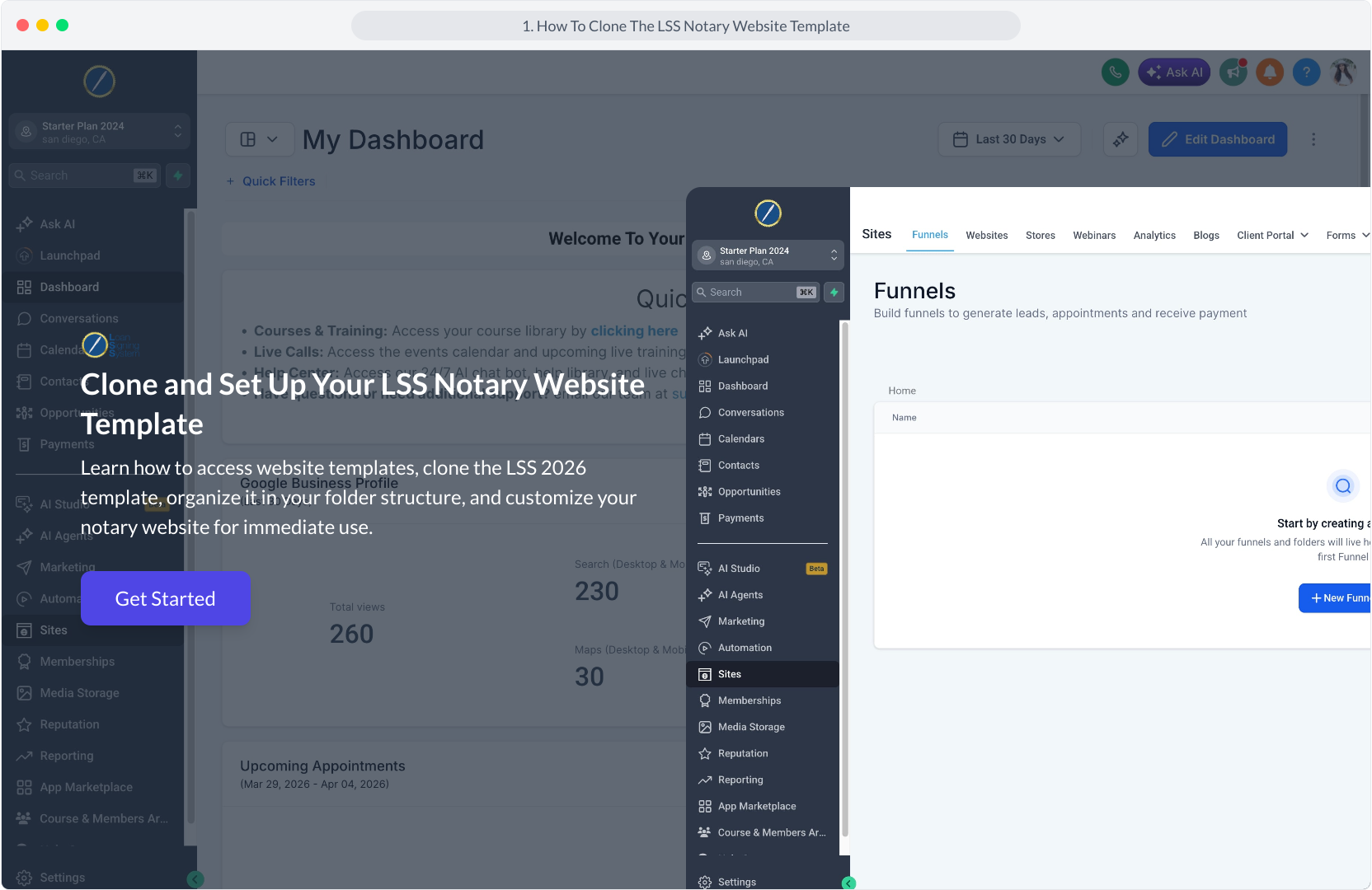
1. Clone and Set Up Your LSS Notary Website Template
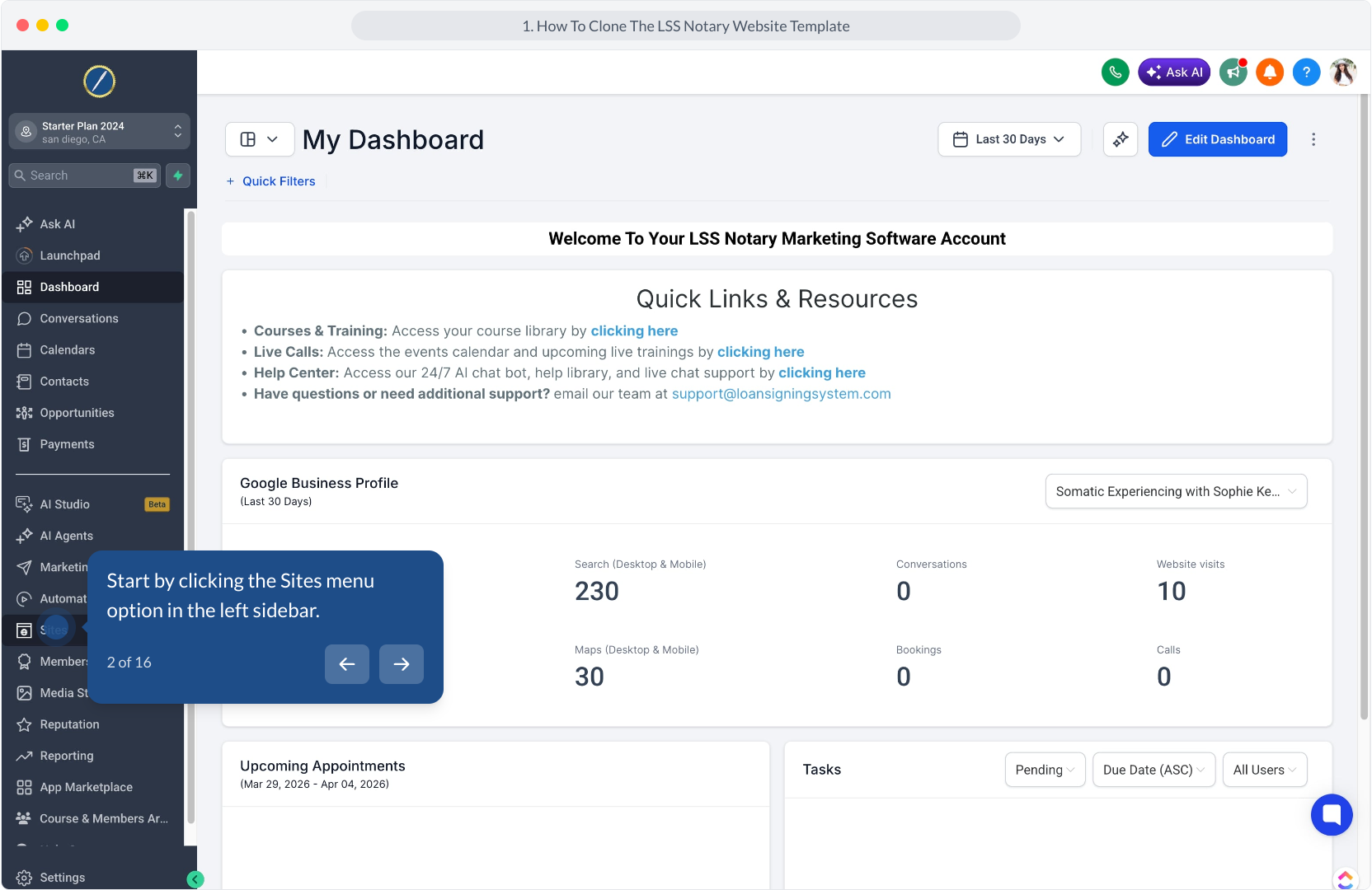
2. Start by clicking the Sites menu option in the left sidebar.
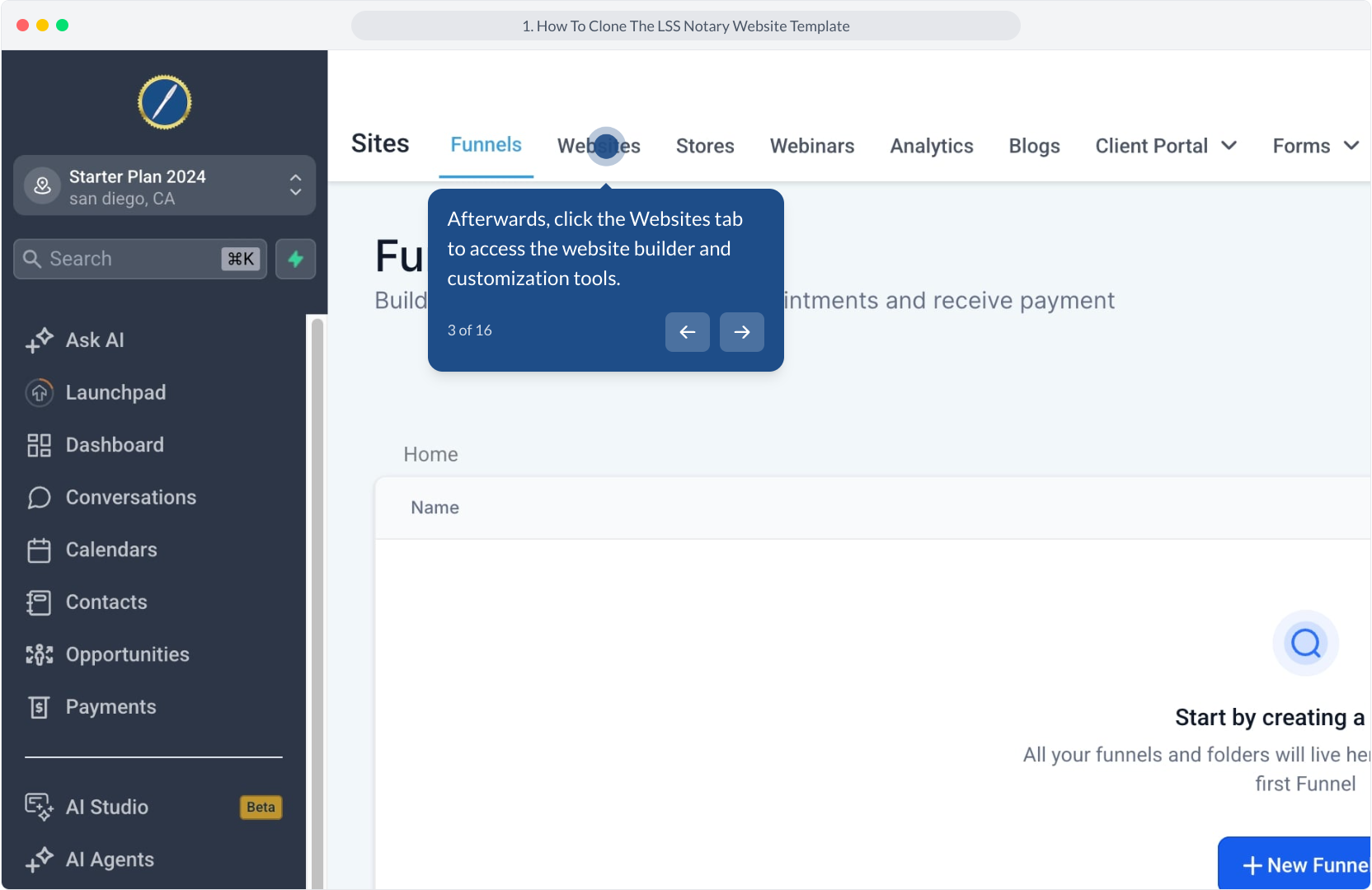
3. Afterwards, click the Websites tab to access the website builder and customization tools.
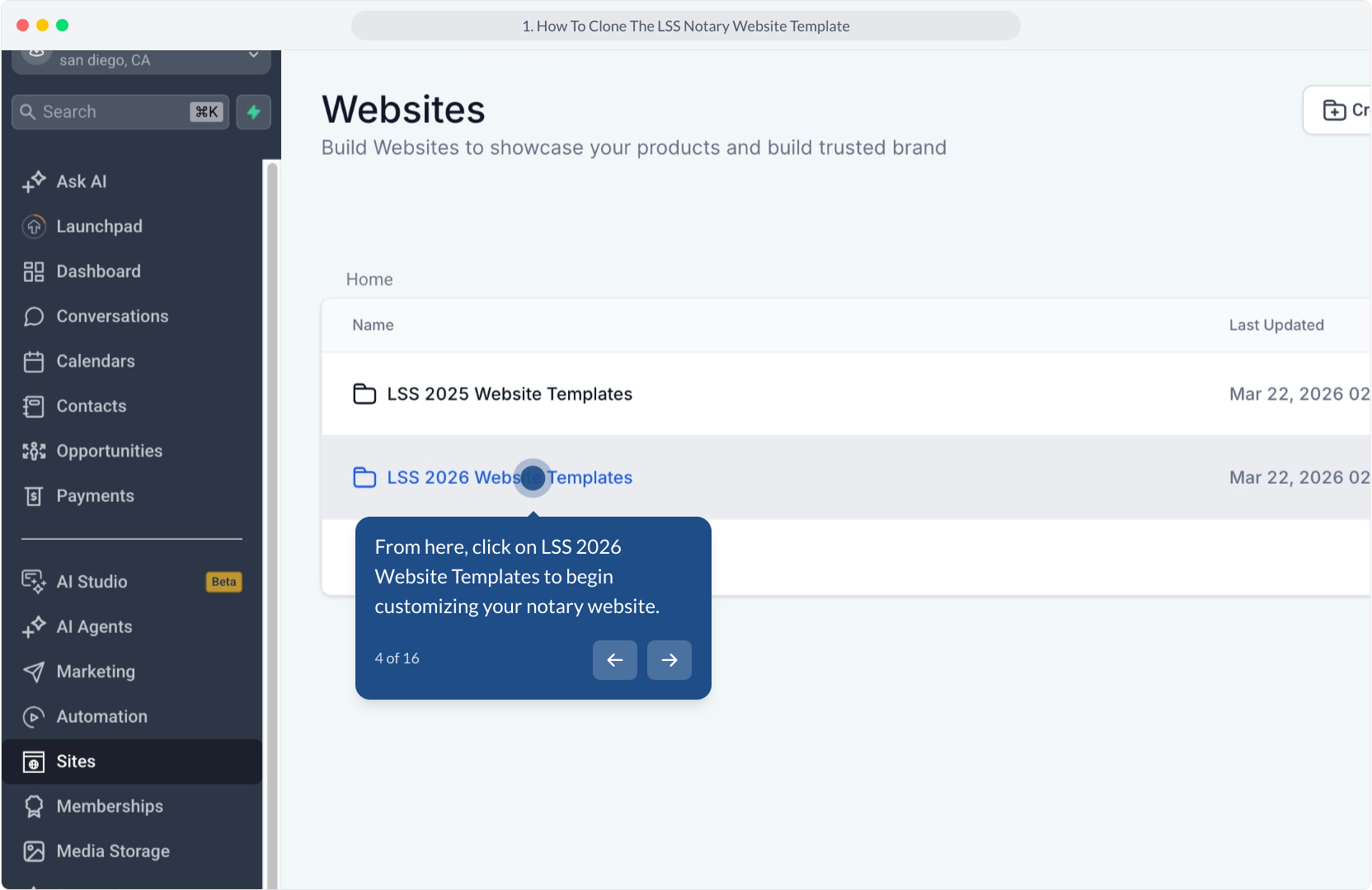
4. From here, click on LSS 2026 Website Templates to begin customizing your notary website.
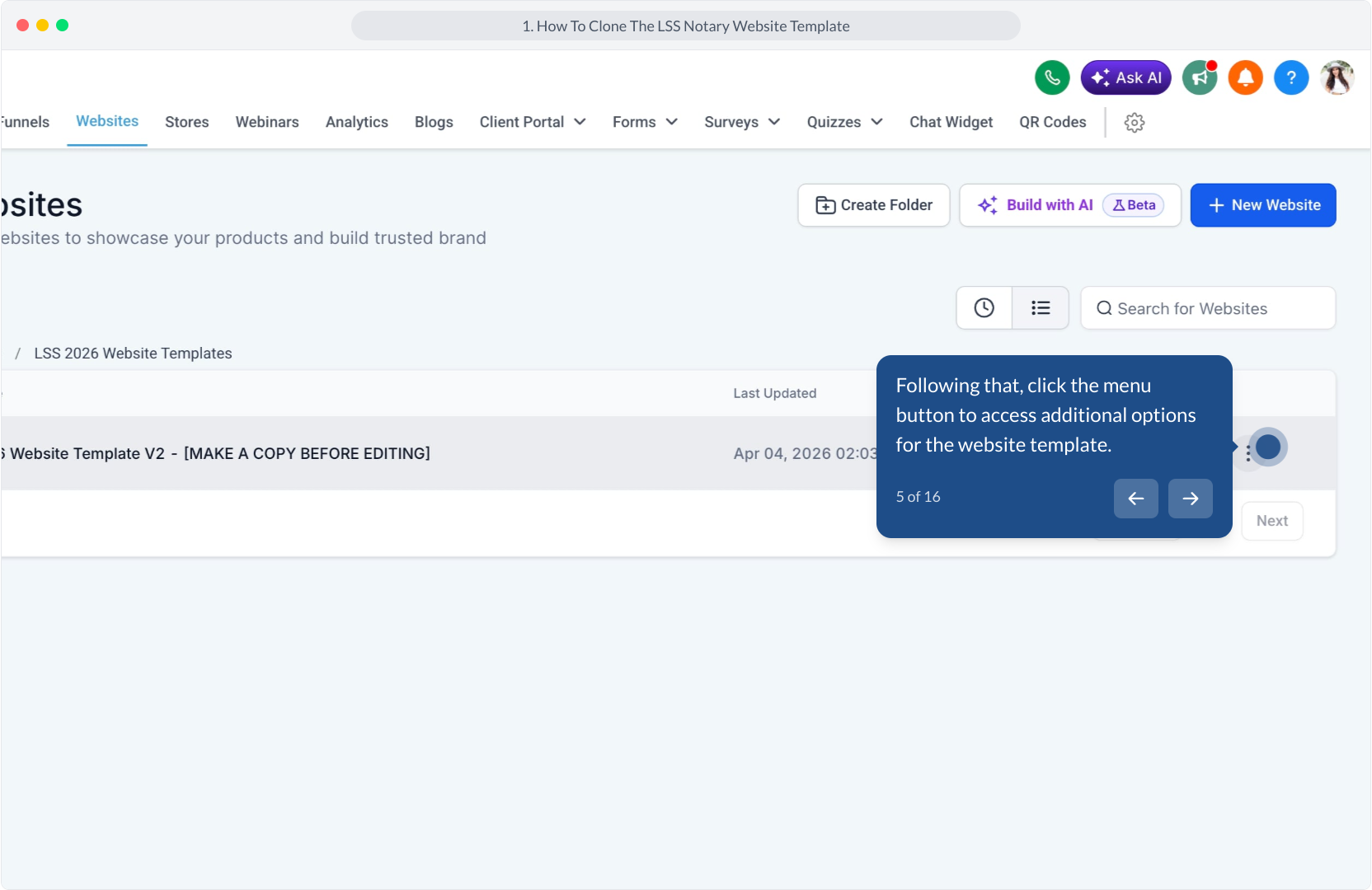
5. Following that, click the menu button to access additional options for the website template.
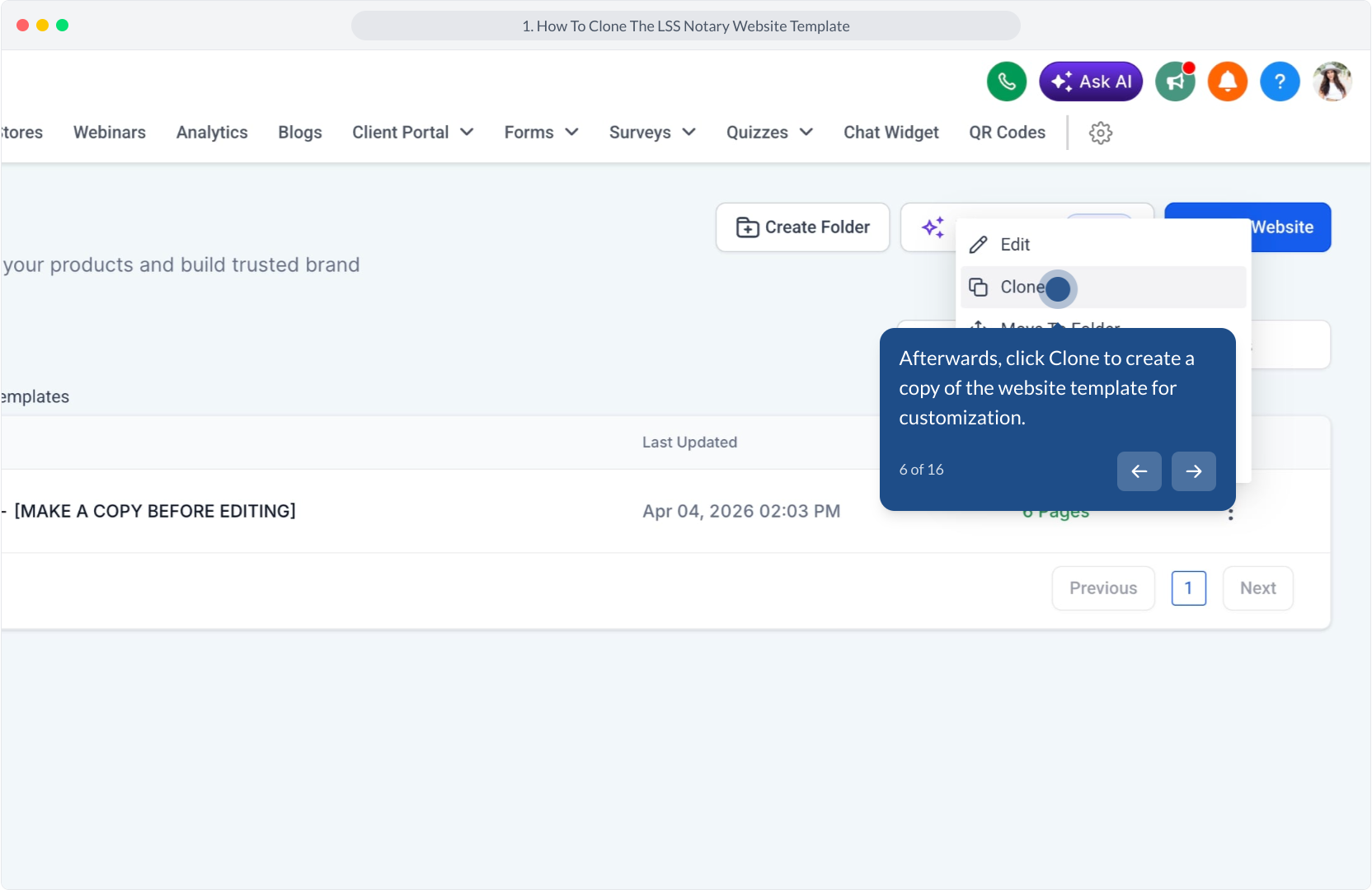
6. Afterwards, click Clone to create a copy of the website template for customization.
7. Next, update the website name to create a unique copy of your template.
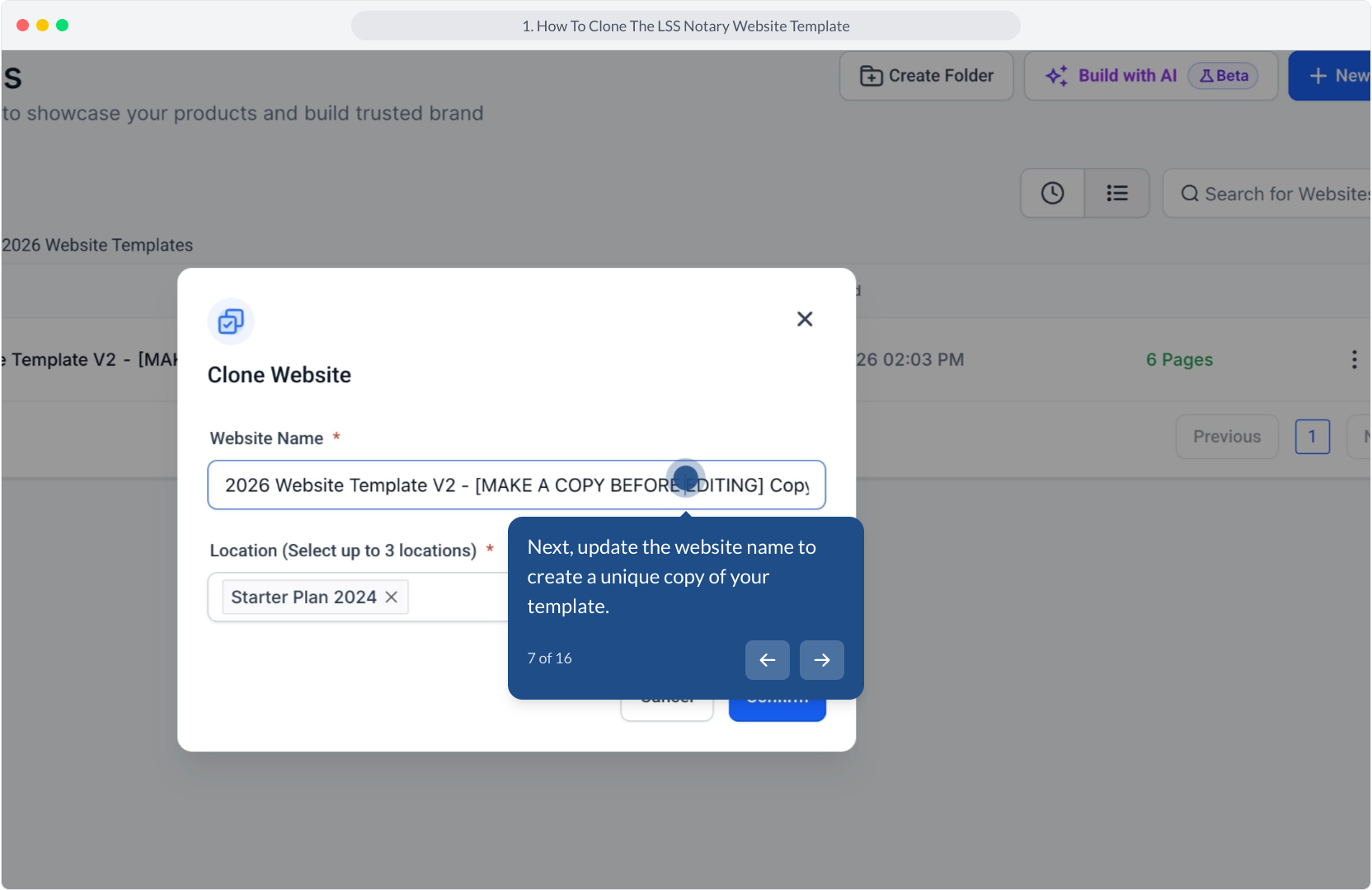
8. Video Step
(Play Now)
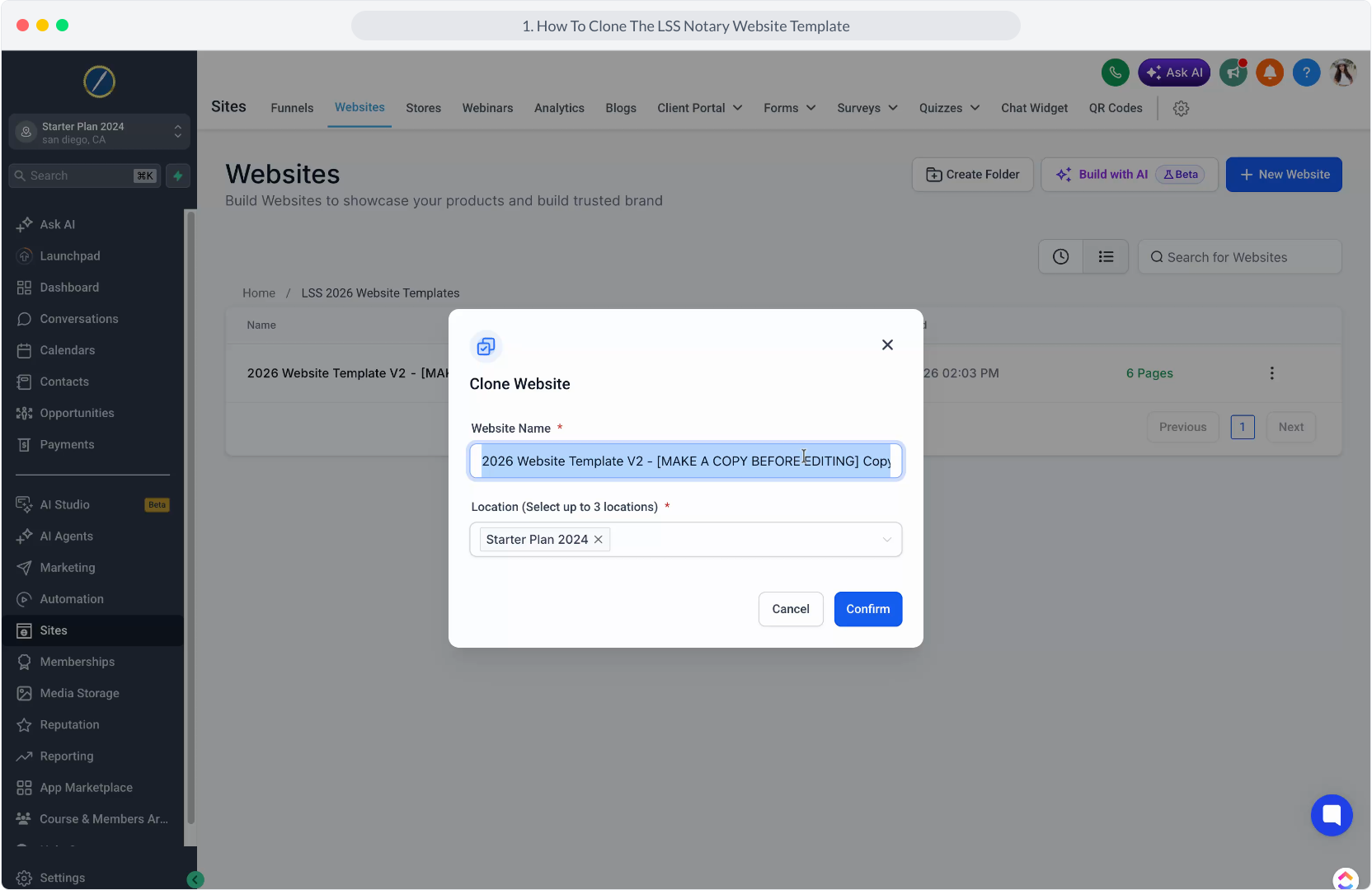
9. Afterwards, click the Confirm button to complete the website cloning process.
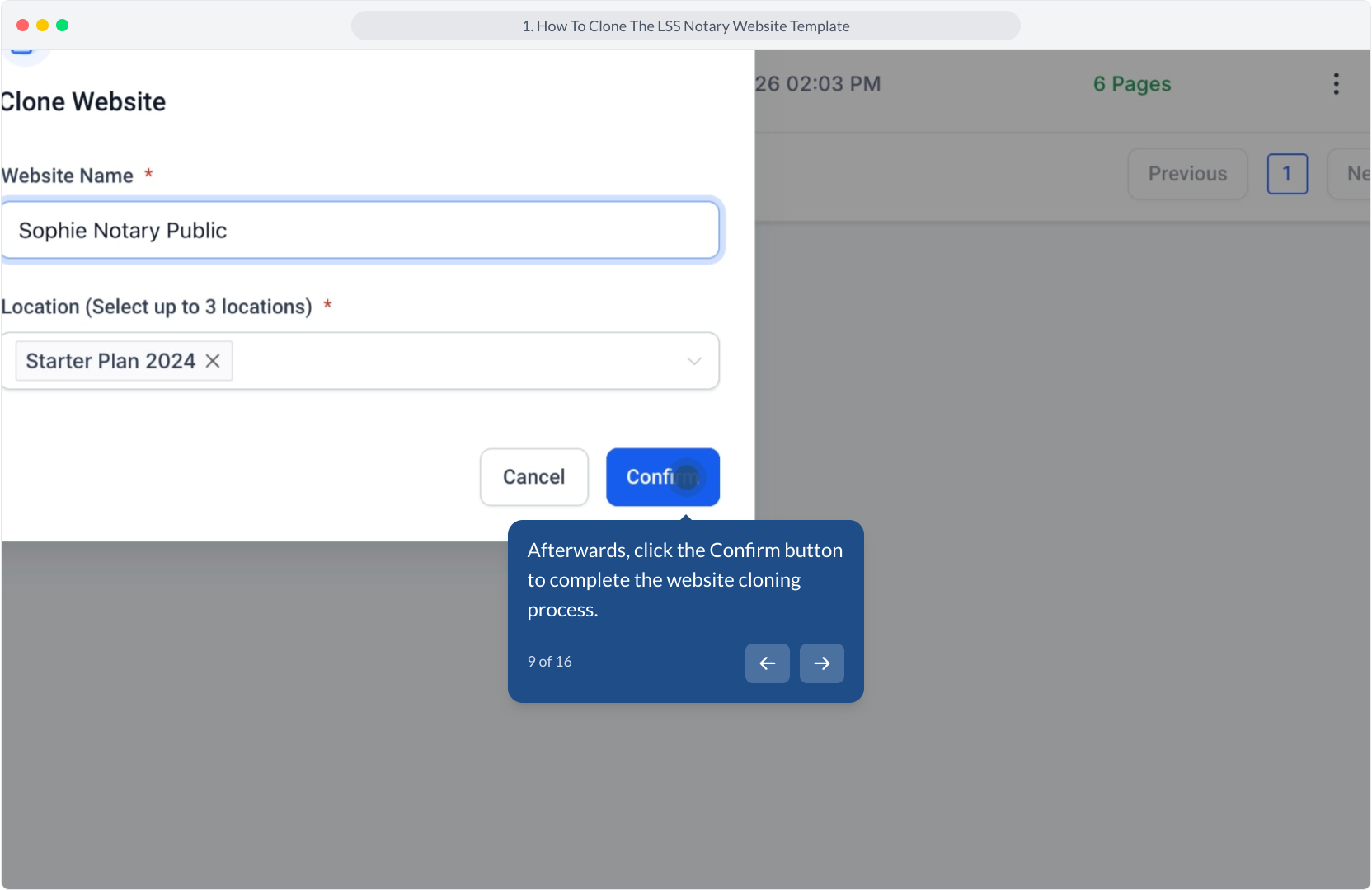
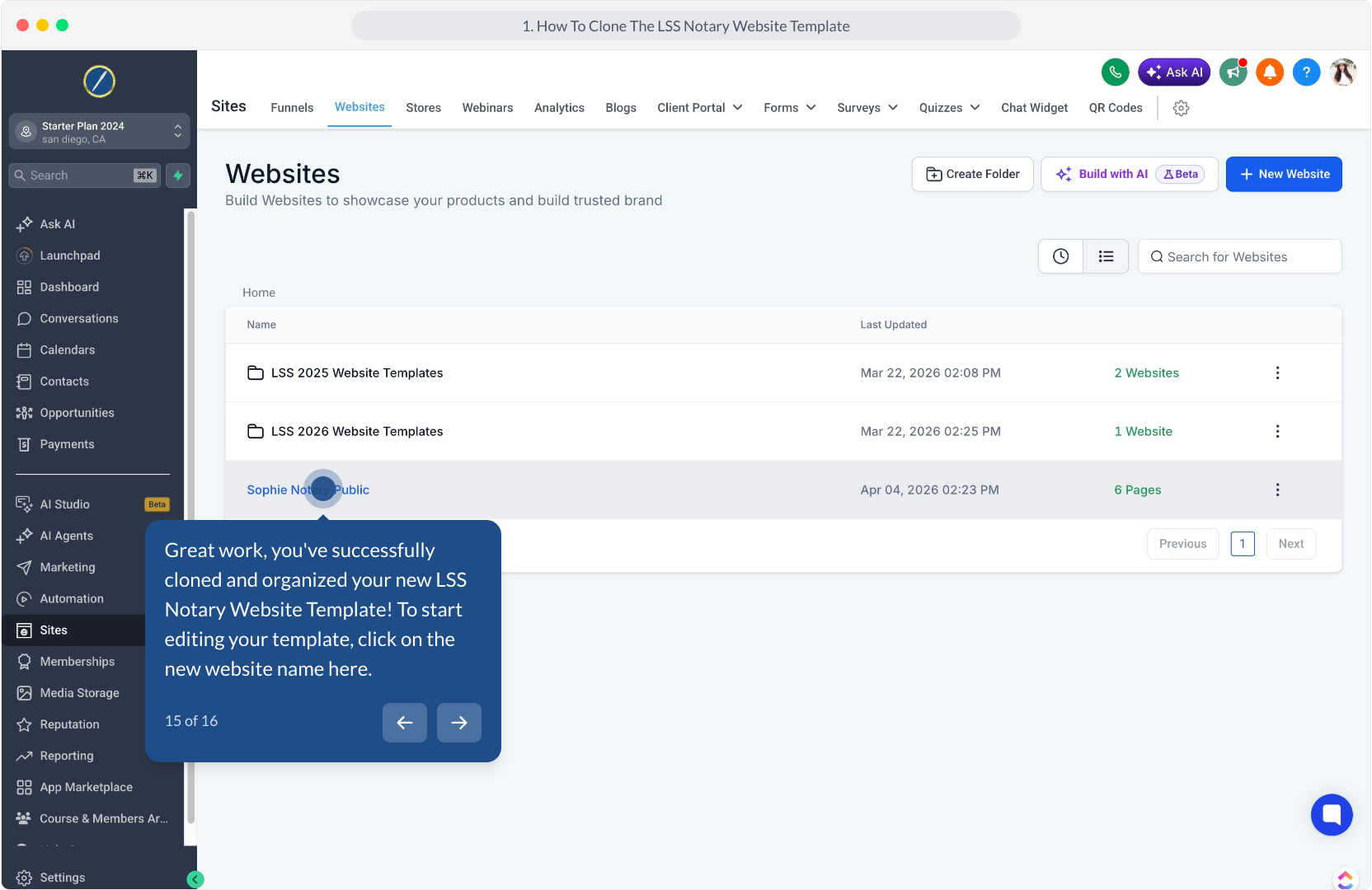
10. It may take a minute for the website template to clone completely. Refresh the page and you should see all 6 pages showing here.
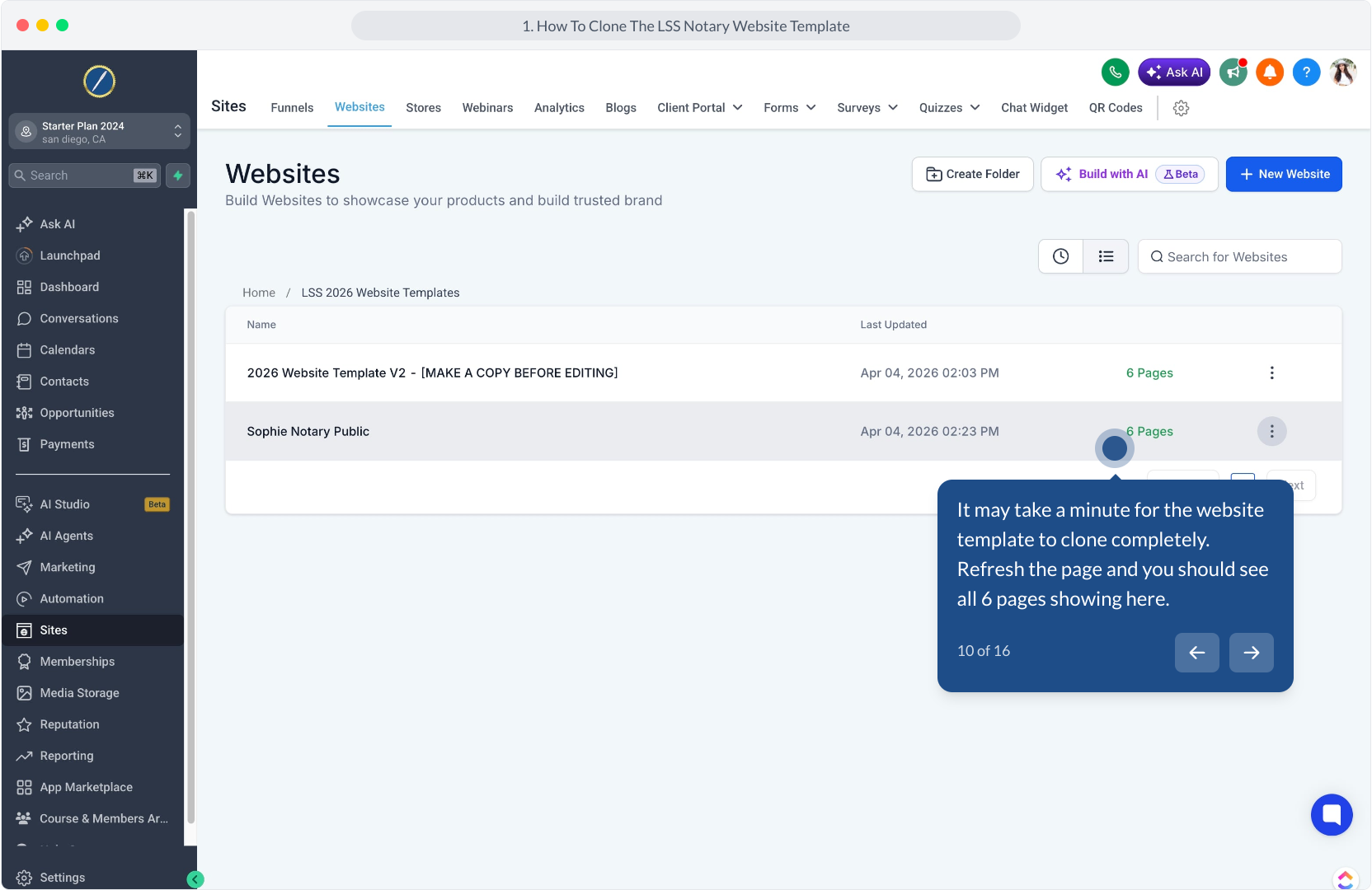
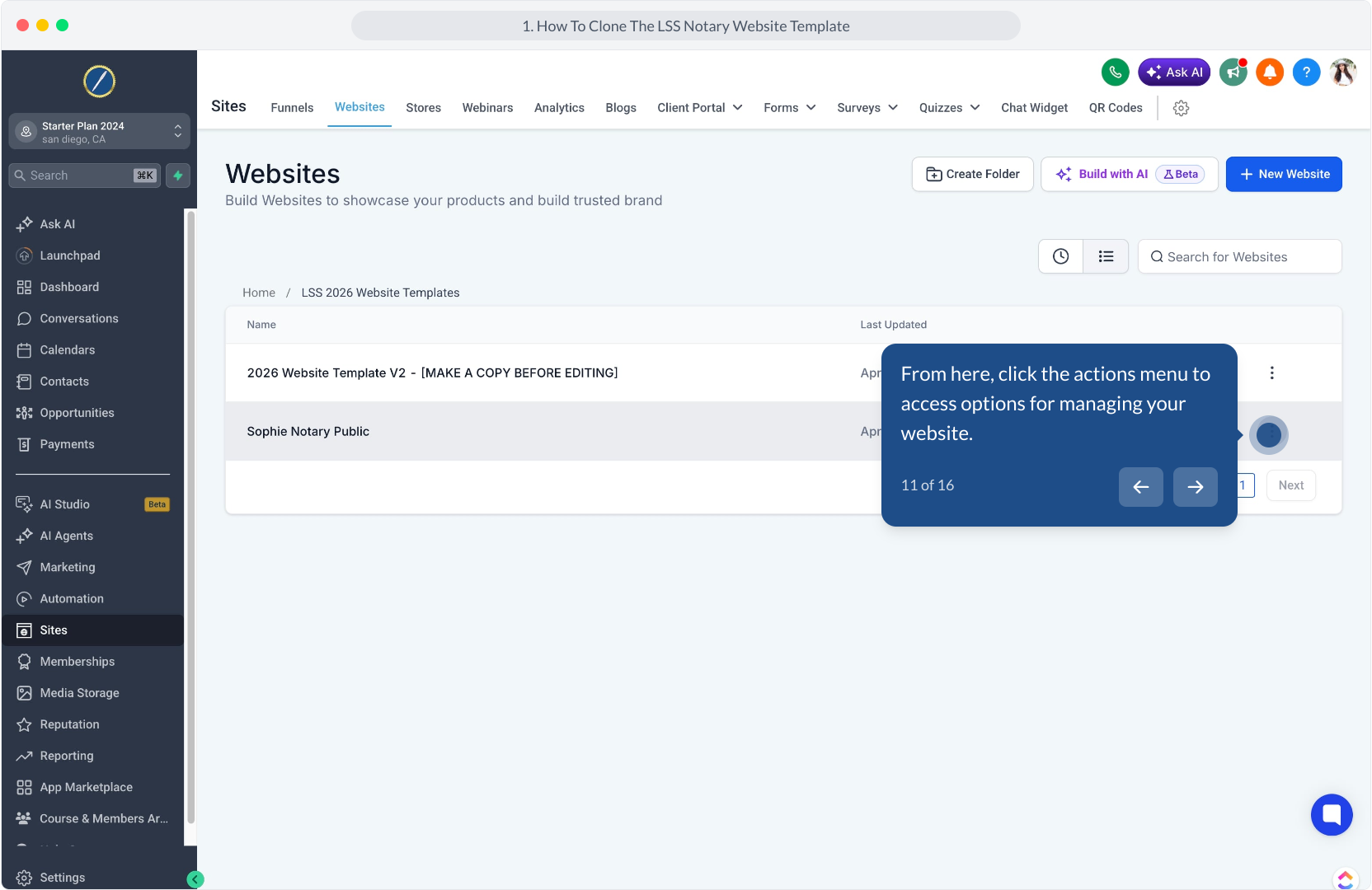
11. From here, click the actions menu to access options for managing your website.
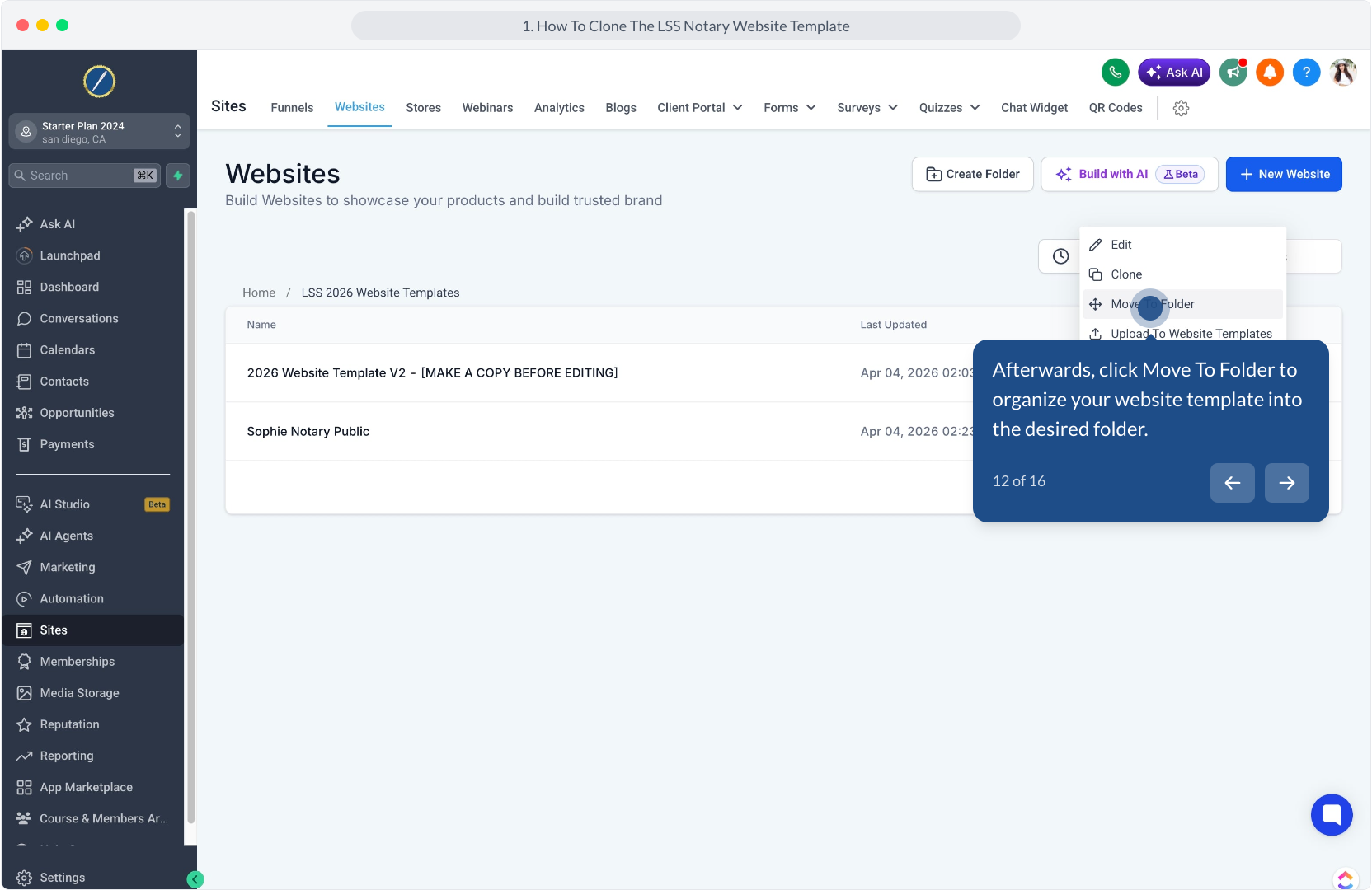
12. Afterwards, click Move To Folder to organize your website template into the desired folder.
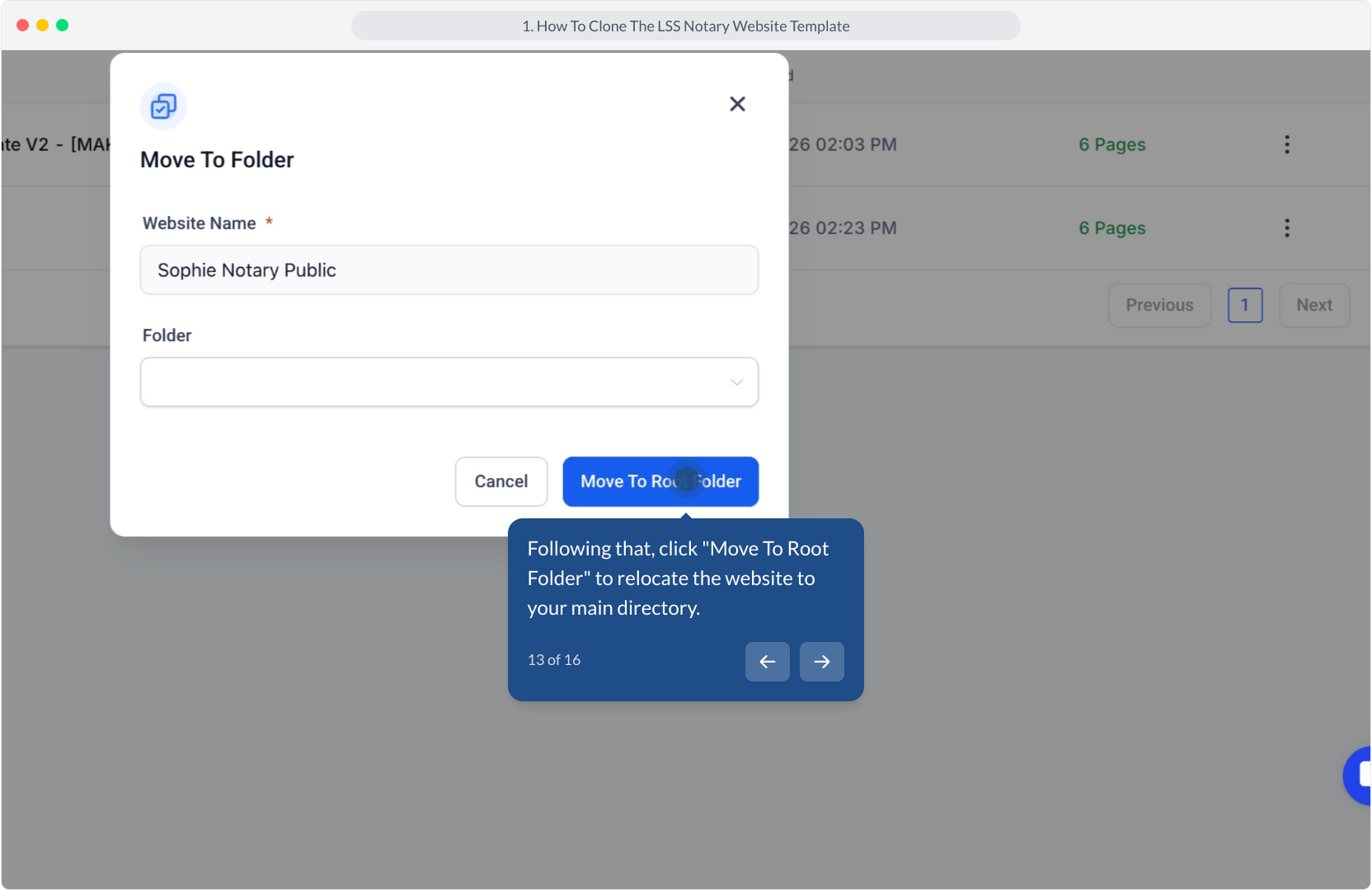
13. Following that, click "Move To Root Folder" to relocate the website to your main directory.
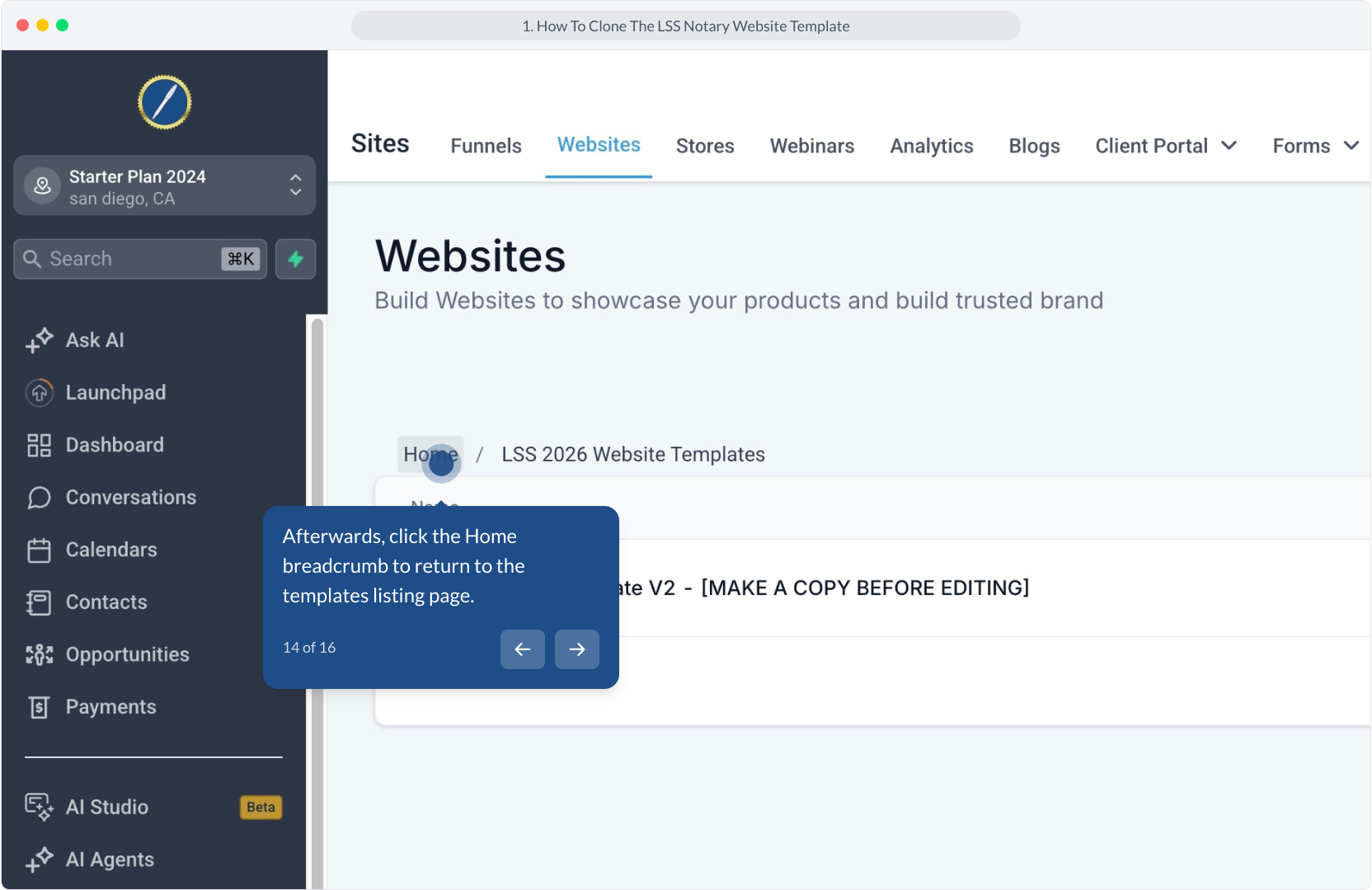
14. Afterwards, click the Home breadcrumb to return to the templates listing page.
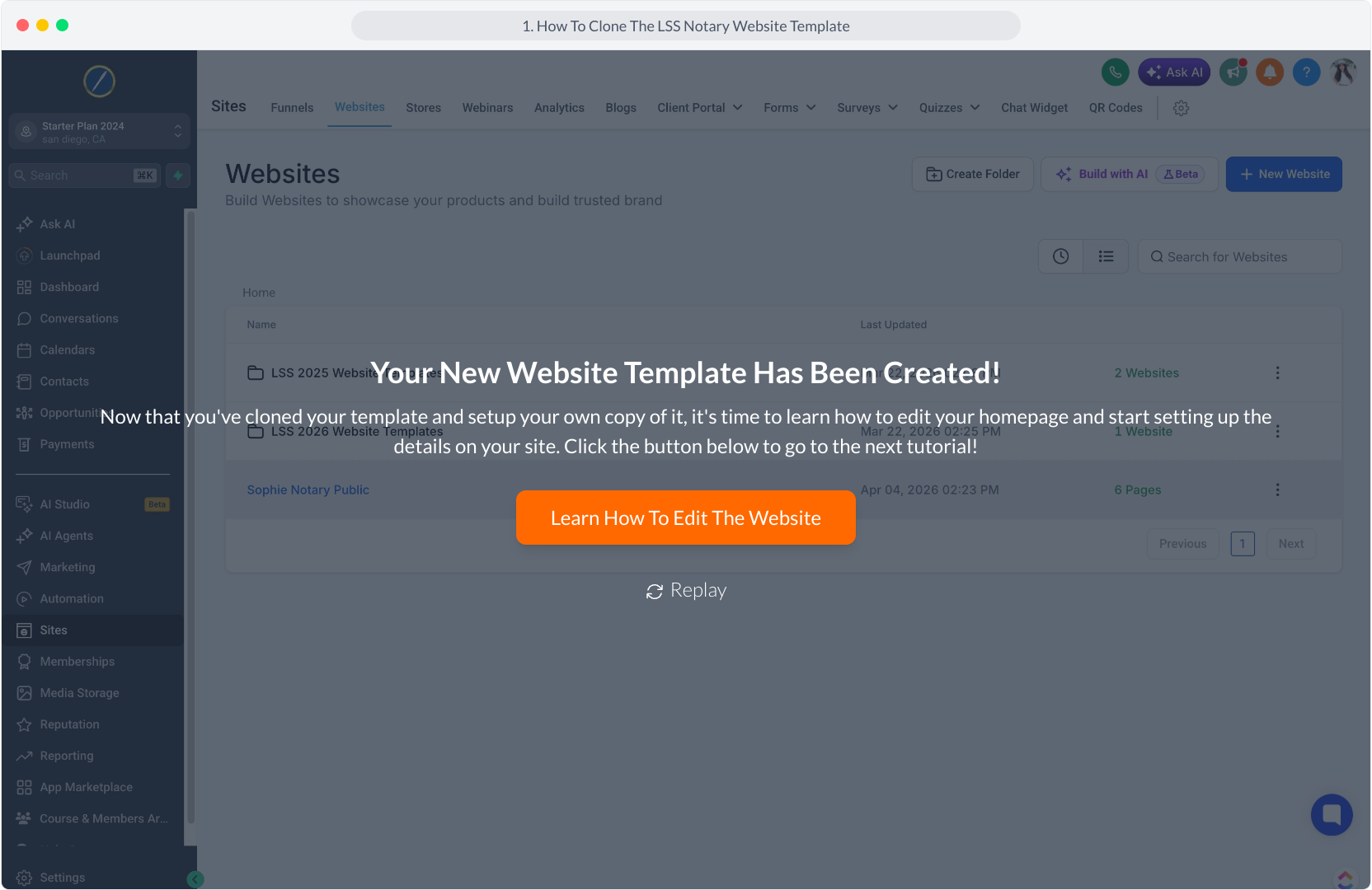
15. Great work, you've successfully cloned and organized your new LSS Notary Website Template! To start editing your template, click on the new website name here.
16. Your New Website Template Has Been Created!