Thanks for sending this over and letting us know you’re having this issue, it’s likely due to the old URL on the loansigningsystem.com website
I went ahead and recorded a loom overview for you here to help explain the problem and how to resolve it: https://www.loom.com/share/2680310c008c4b07b6d23b50a5ba36f8
In addition, feel free to reference the new student onboarding document here with a more detailed breakdown of how to get started and the URLs you’ll want to bookmark for yourself!
The main members area can be accessed at members.loansigningsystem.com moving forward.
1. Identify the Correct URL for Login 0:00
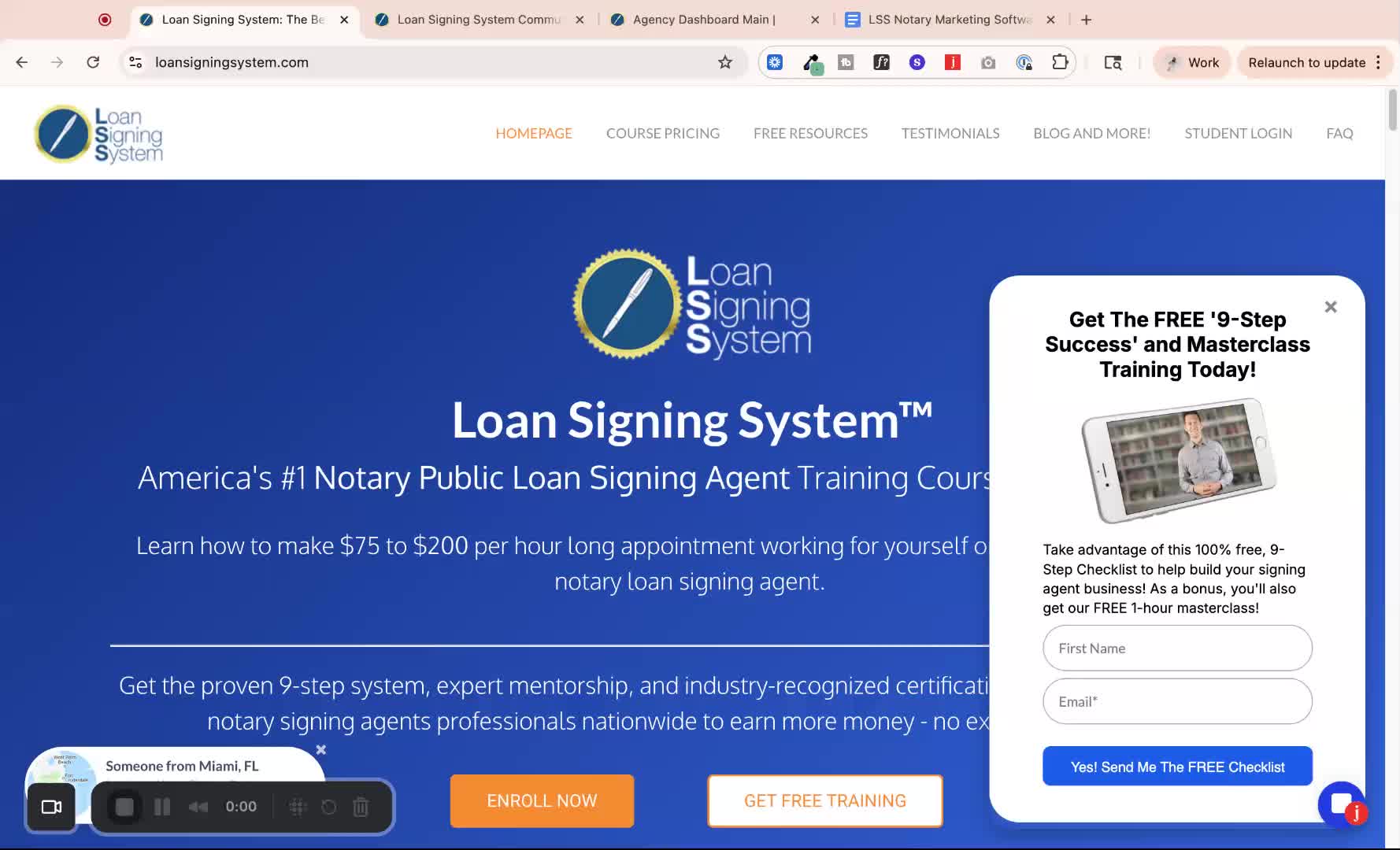
If you're having trouble logging in, it may be due to using an outdated URL.
Do not use the student login button on loansigningsystem.com, as it leads to an old platform.
The correct URL to use is members.loansigningsystem.com.
Bookmark this link for easy access.
2. Logging into the Course 1:07

Go to members.loansigningsystem.com.
Click the Login button (not the Join Group button).
Use the email you purchased with to log in.
3. Using Secure Code for Login 1:24
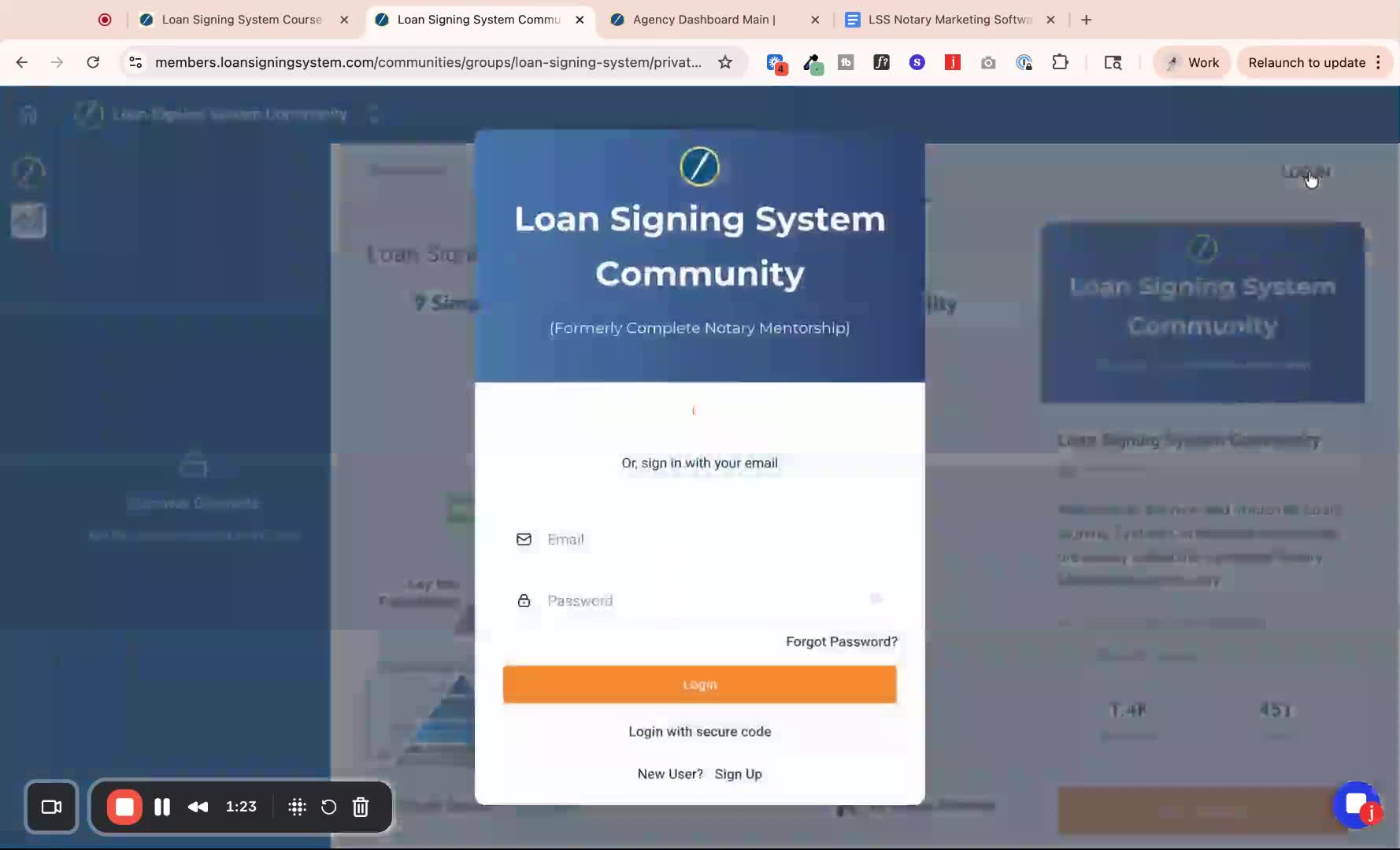
If you don't remember your password, click Log in with Secure Code.
Enter your purchase email to receive a one-time password (OTP) via email.
4. Resetting Your Password 1:47

If you prefer to log in with a password, click Forgot Password to reset it.
5. Alternative Login Options 2:06
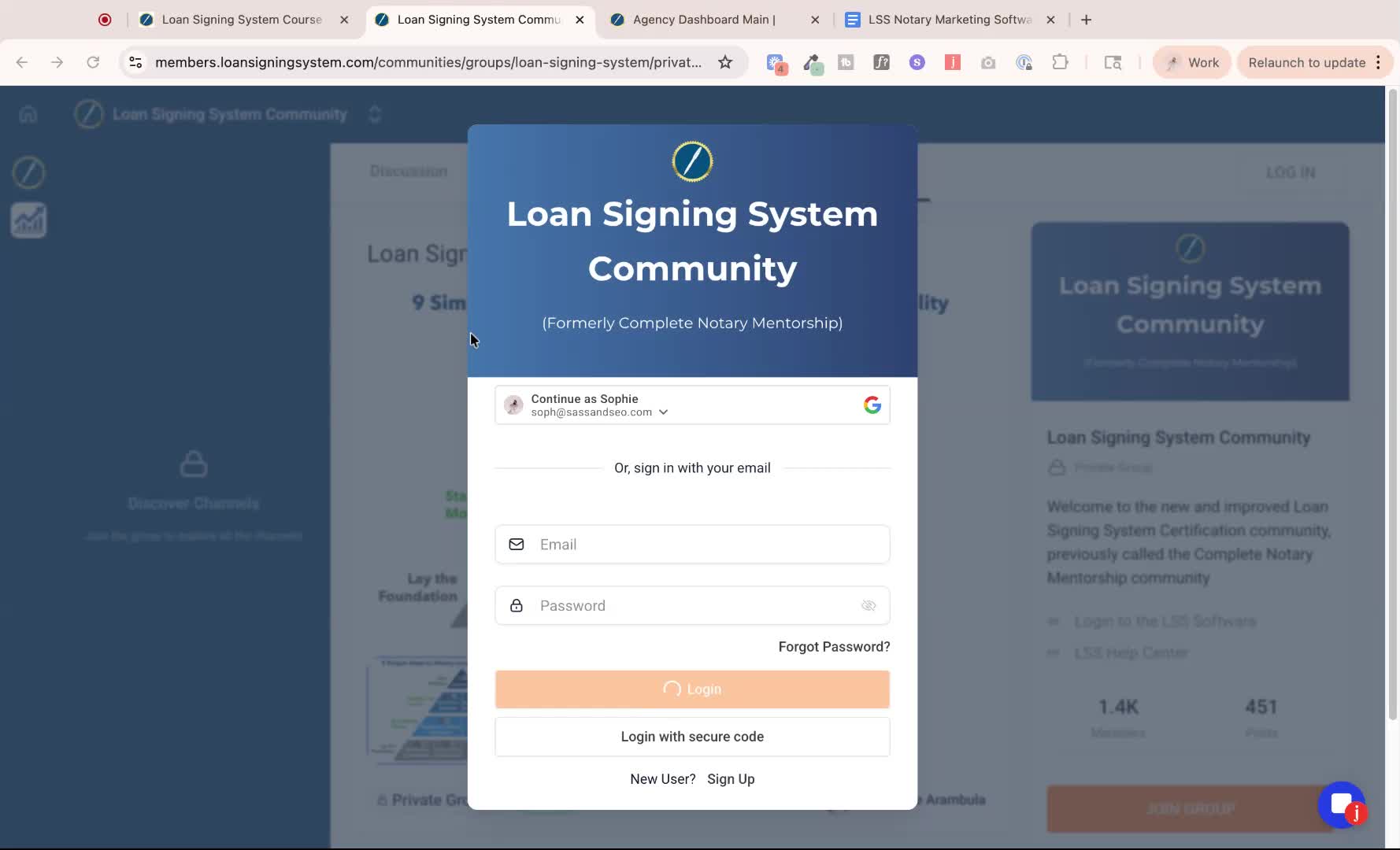
If you know your password, log in directly.
You can also log in using your Google account.
6. Navigating the Course Community 2:23
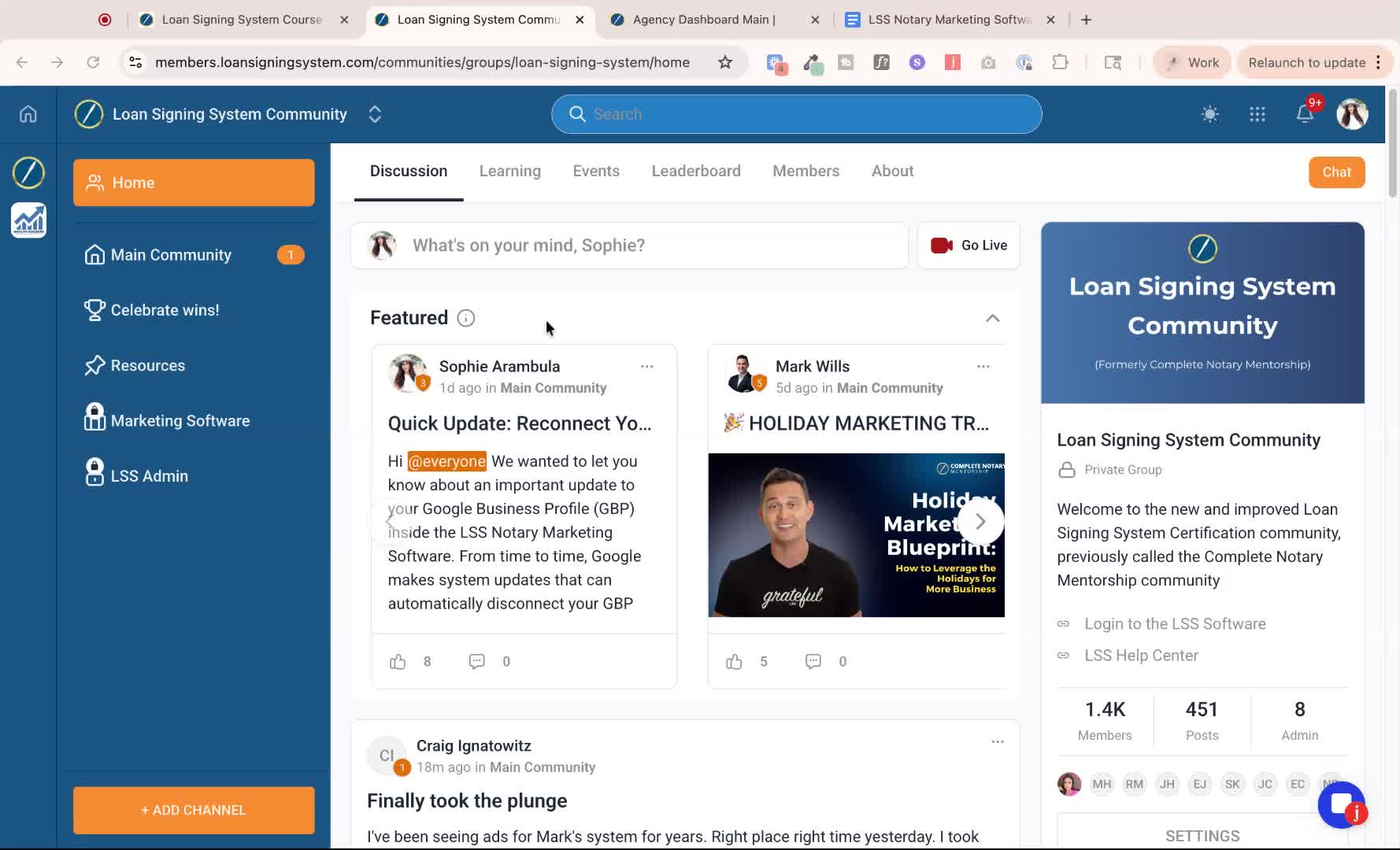
After logging in, you will see the community dashboard.
Access the Discussion Panel for communication with other members and the team.
7. Accessing Courses 2:39

Click on the Learning Tab to find all courses you have access to.
Start with the Six-Figure Course Certification.
8. Completing the Certification Course 2:44
Open the certification course and go through the modules step-by-step.
9. Continuing Education with Notary Marketing Course 3:05

After completing the certification, proceed to the Notary Marketing Sophomore Course.
10. Joining Support Calls 3:18
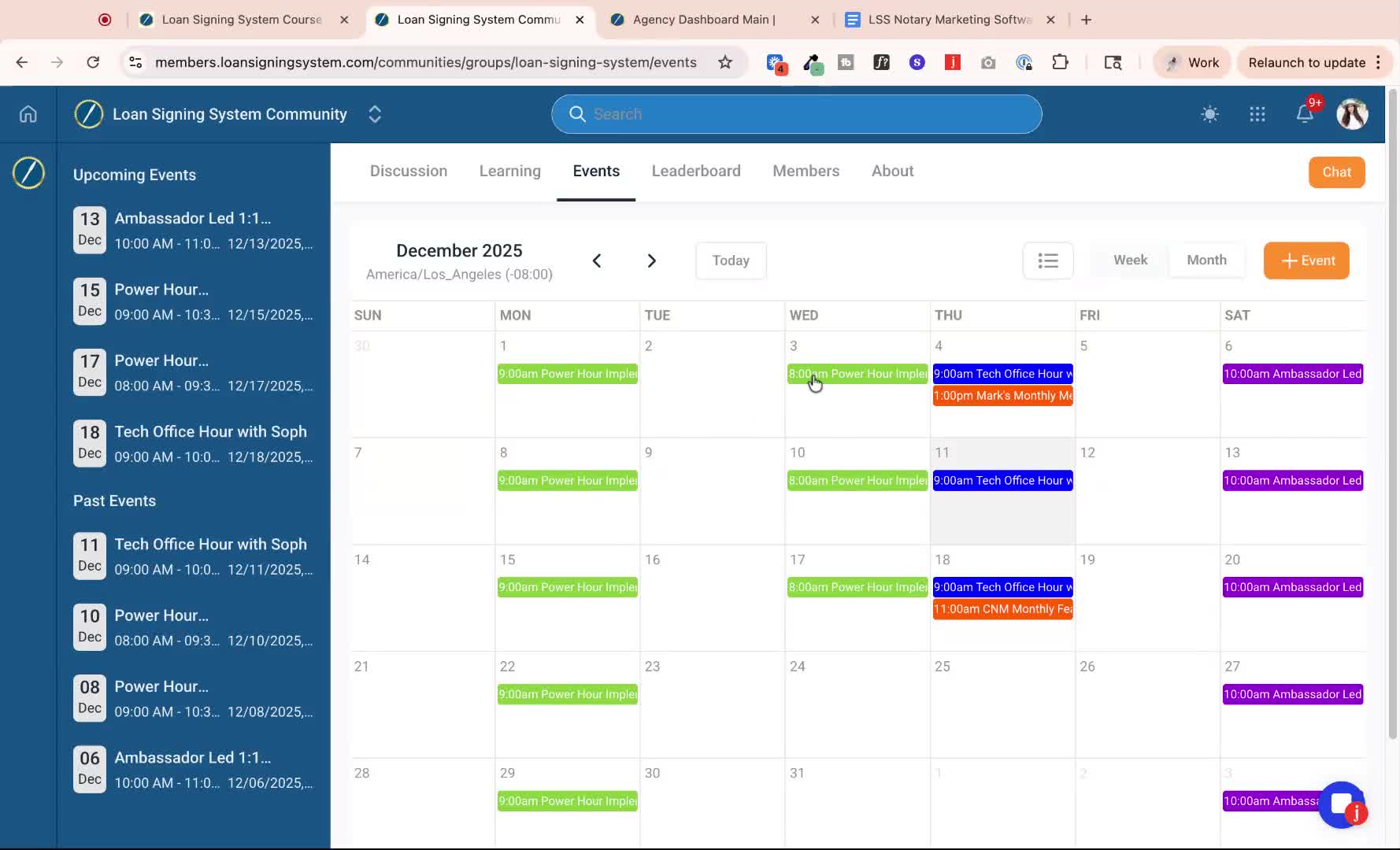
Participate in support calls:
Green Calls: General notary work support.
Orange Calls: Led by Mark for additional guidance.
Purple Calls: Led by LSS ambassadors every Saturday.
Blue Calls: Tech support for notary marketing software.
11. Registering for Calls 3:58
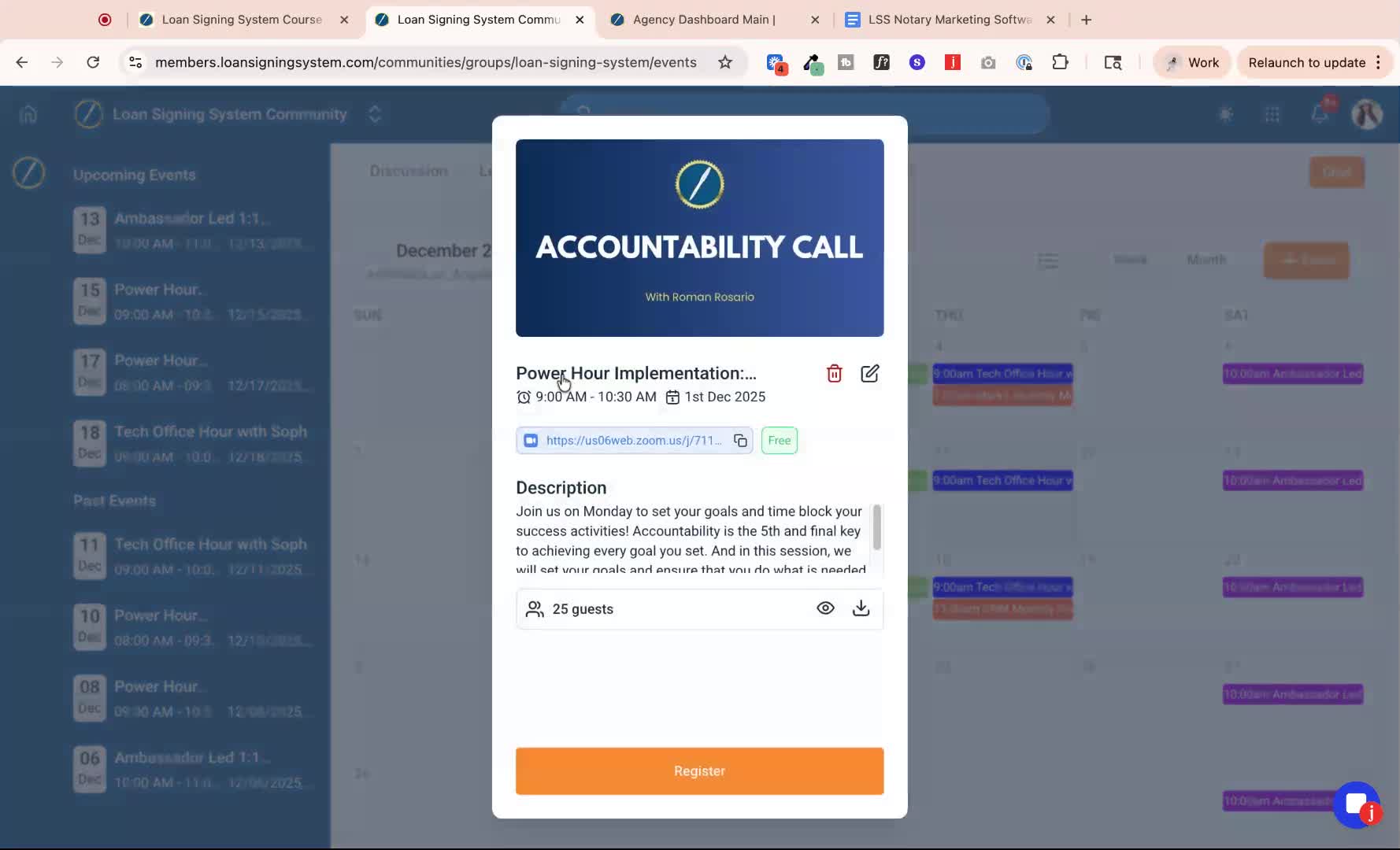
Click on the call you want to register for.
Use the registration option to add it to your Google Calendar or other calendar options.
12. Accessing Notary Marketing Software 4:28
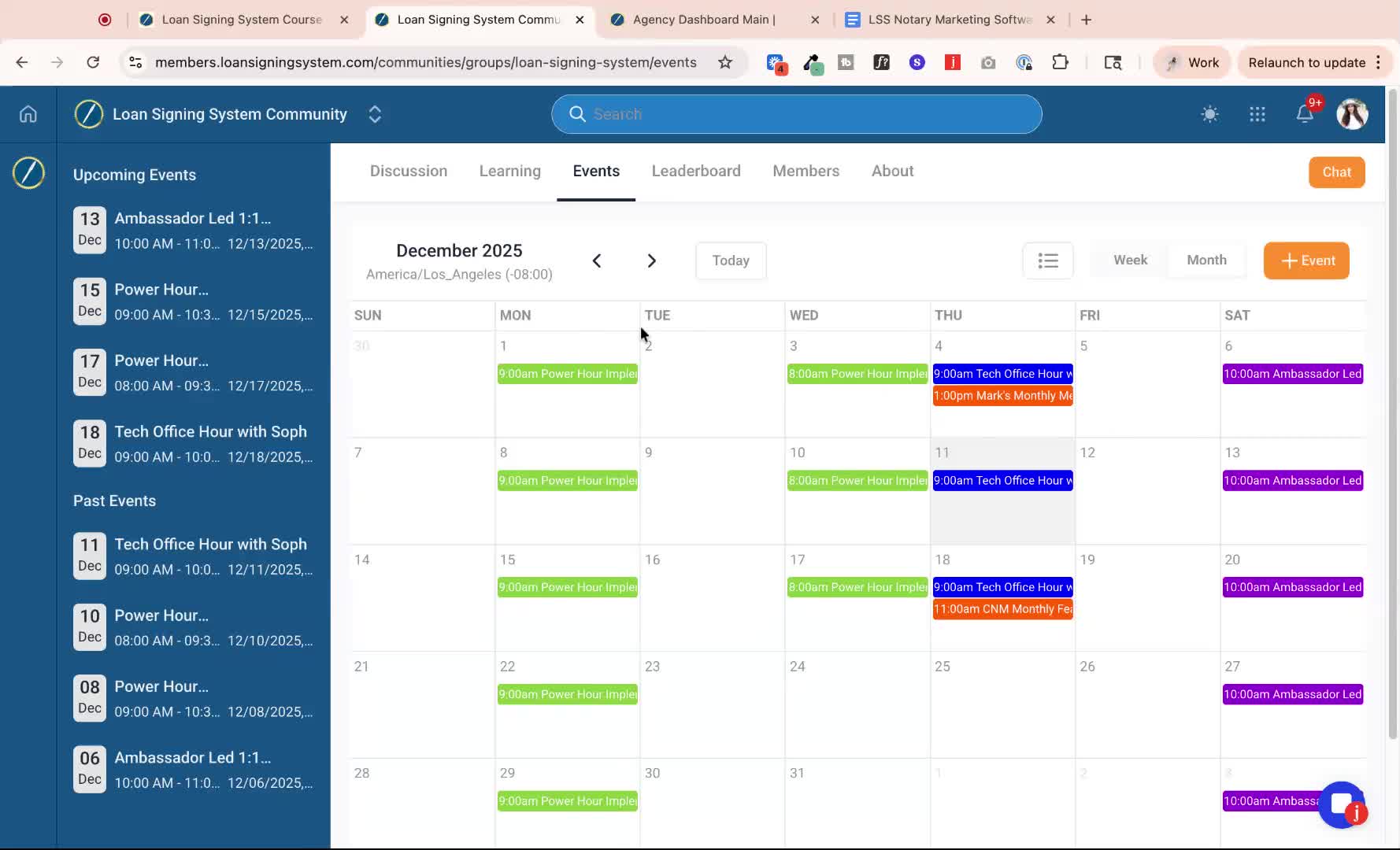
Use the URL CRM.NotarySuccessPath.com to log in to the Notary Marketing software.
Note that this requires a separate login from the course community.
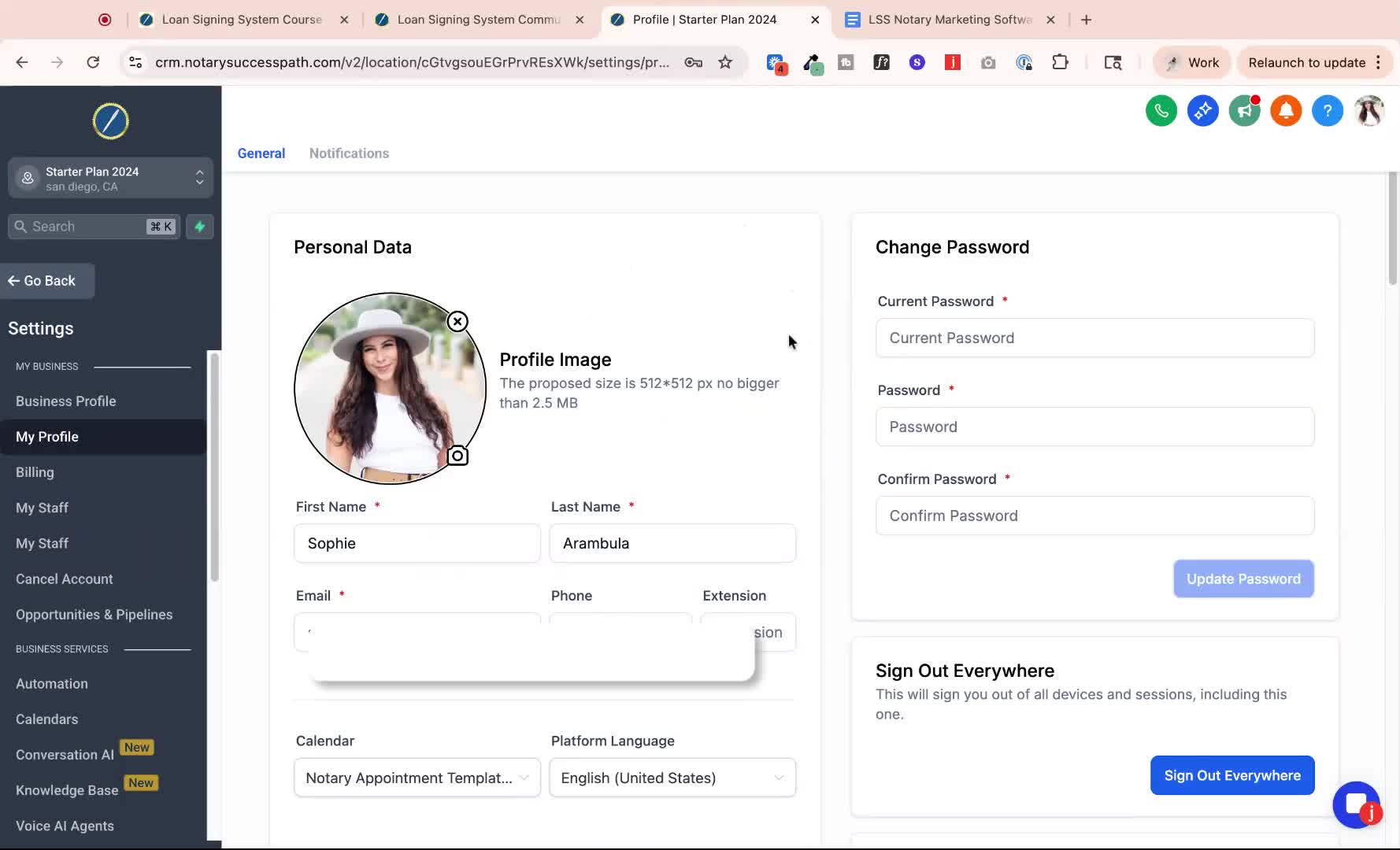
13. Managing Passwords 5:04
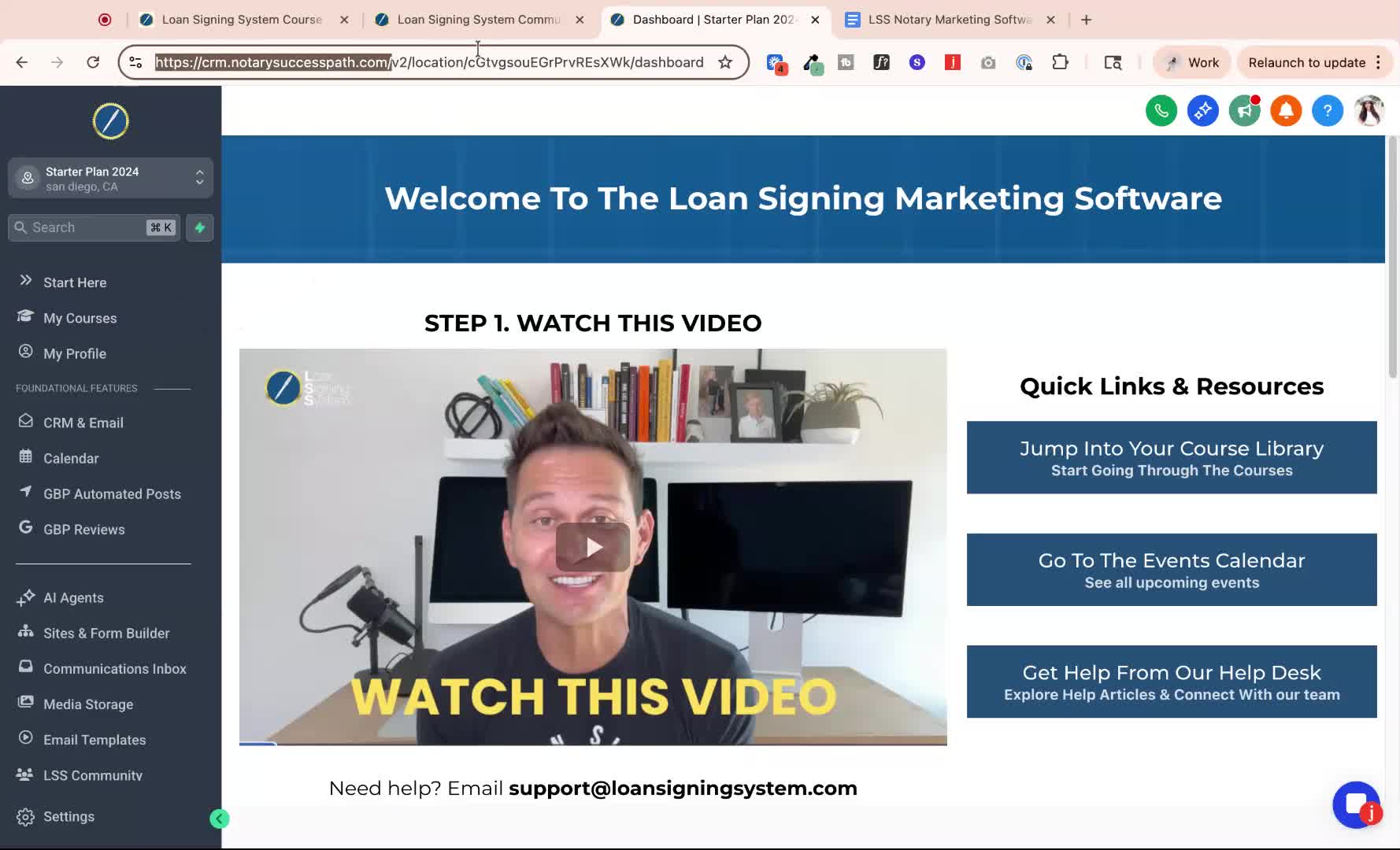
Passwords for the course community and the Notary Marketing software may differ.
Update your password in your profile if needed.
14. Seeking Further Assistance 5:27
If you encounter any issues or have questions, reach out for support.
Still having problems? reach out to our team directly via live chat ore emailing us at support@loansigningsystem.com and we’d be happy to help!