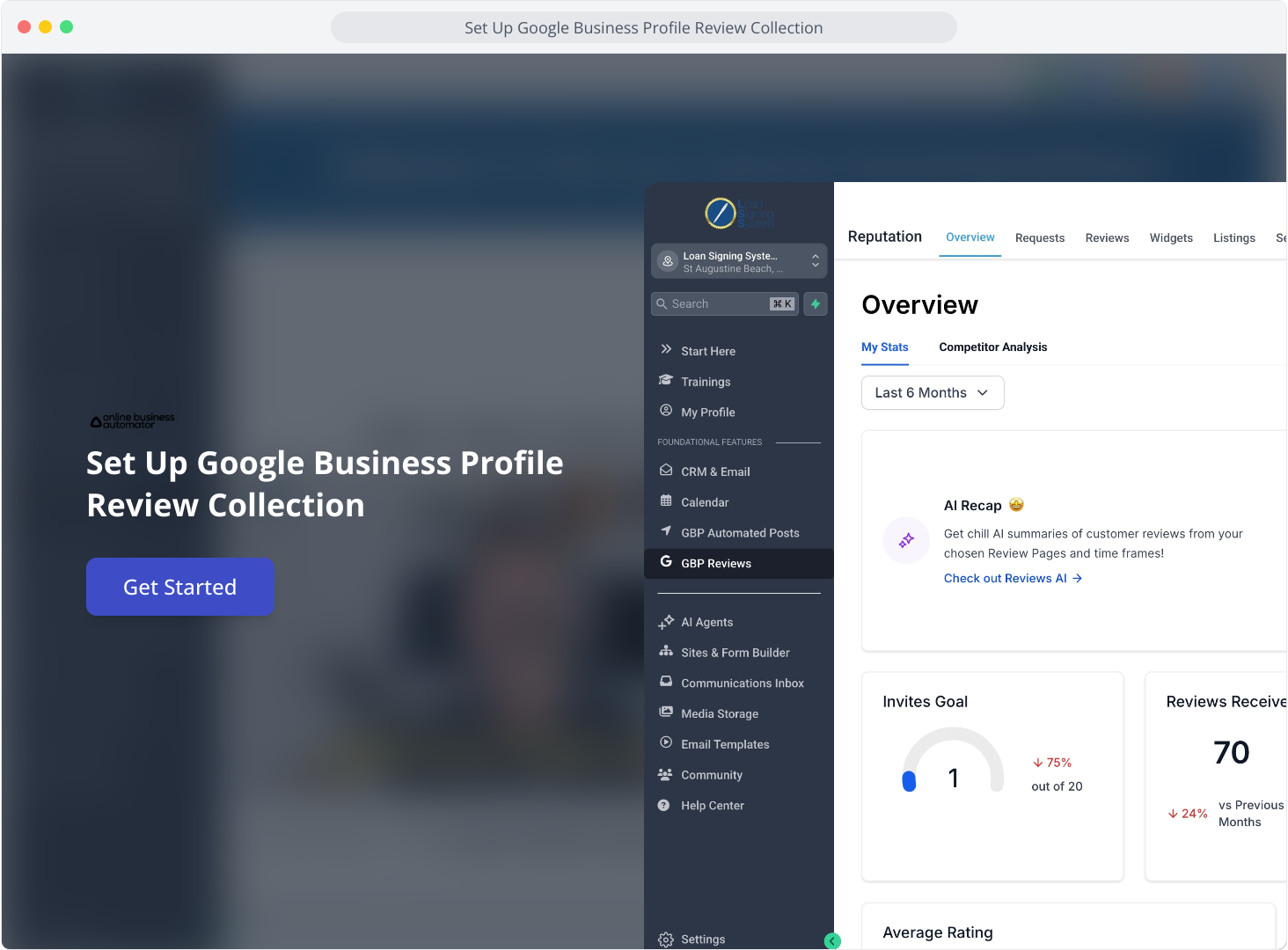
1. Set Up Google Business Profile Review Collection
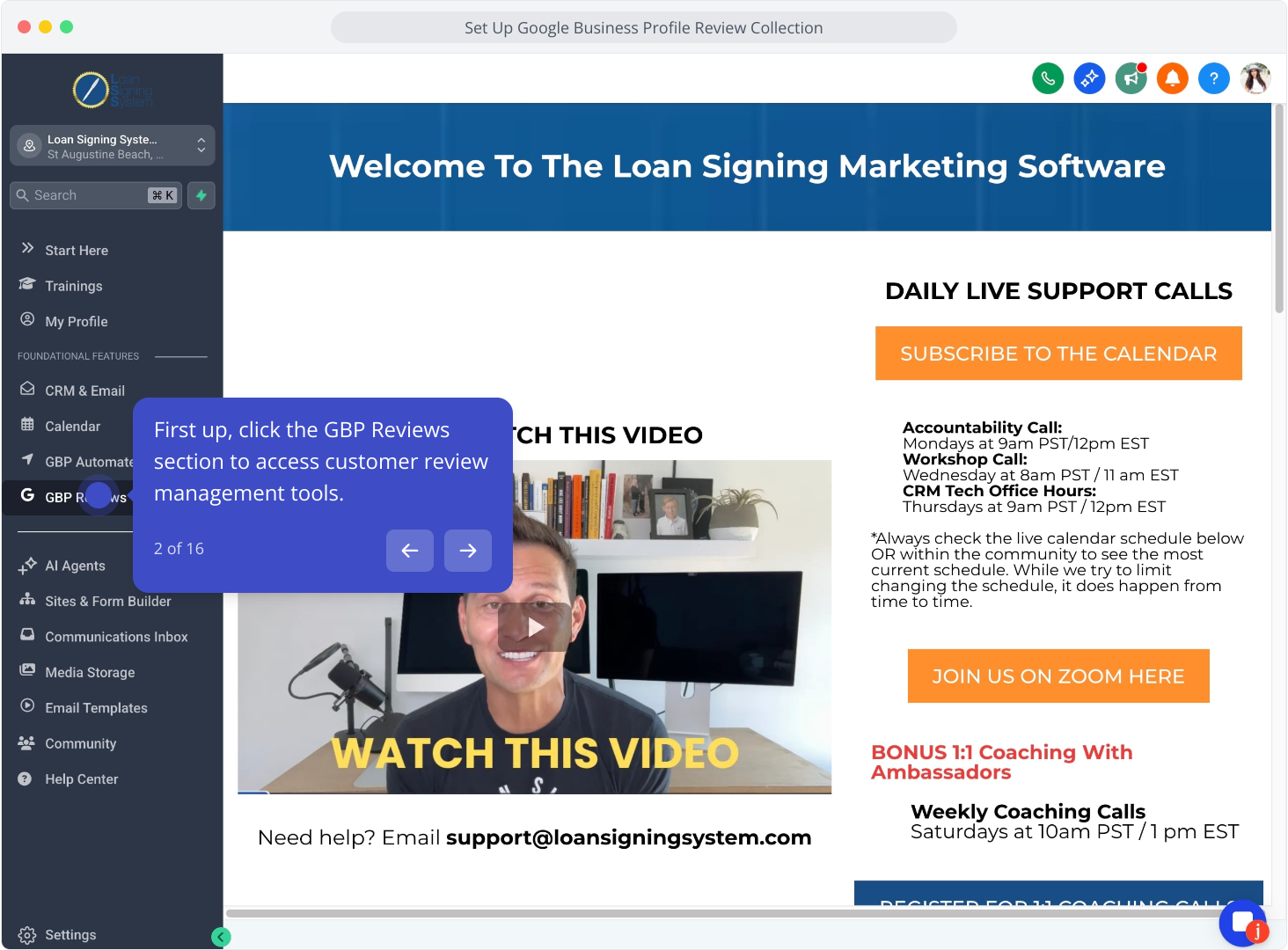
2. First up, click the GBP Reviews section to access customer review management tools.
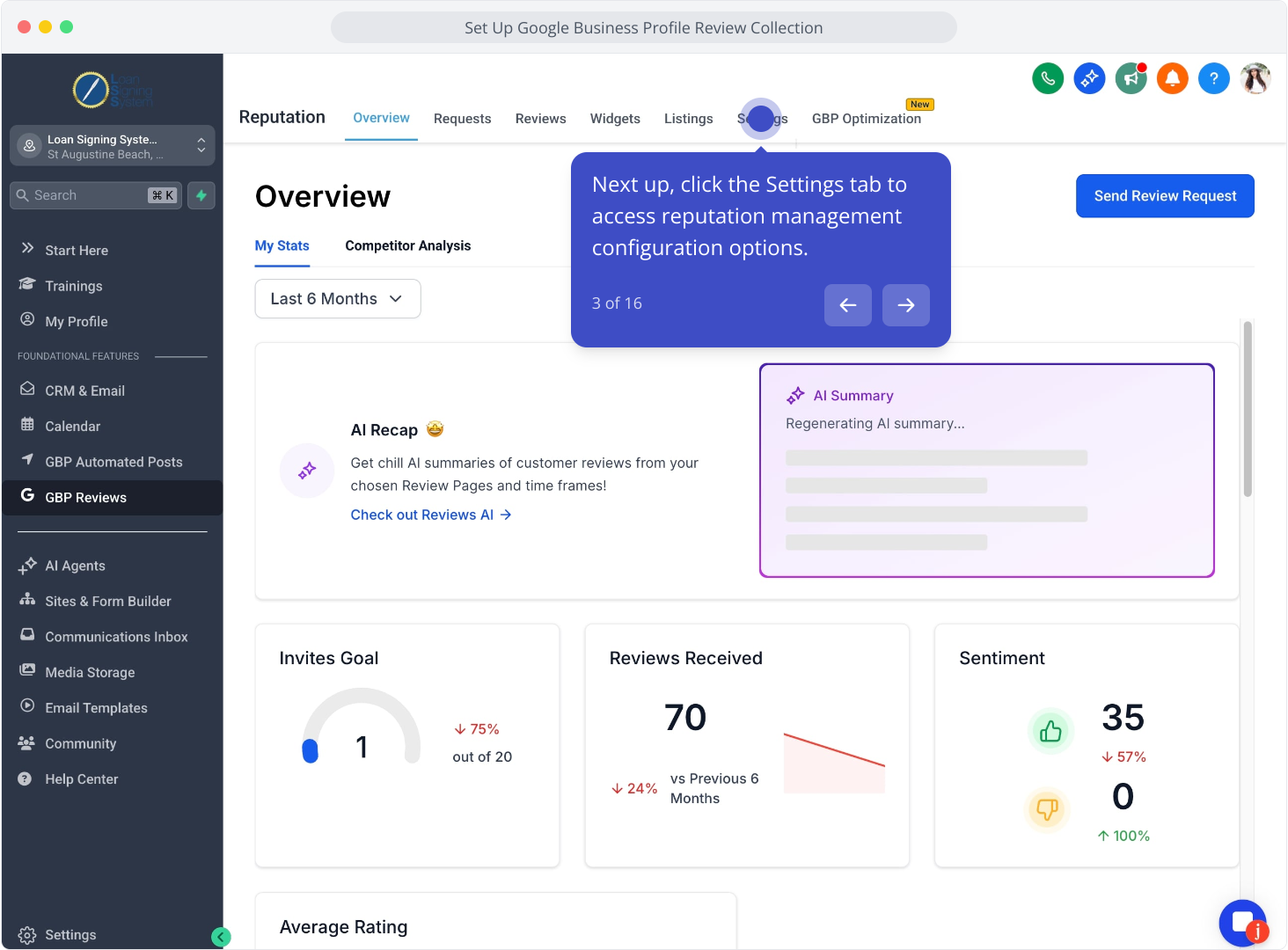
3. Next up, click the Settings tab to access reputation management configuration options.
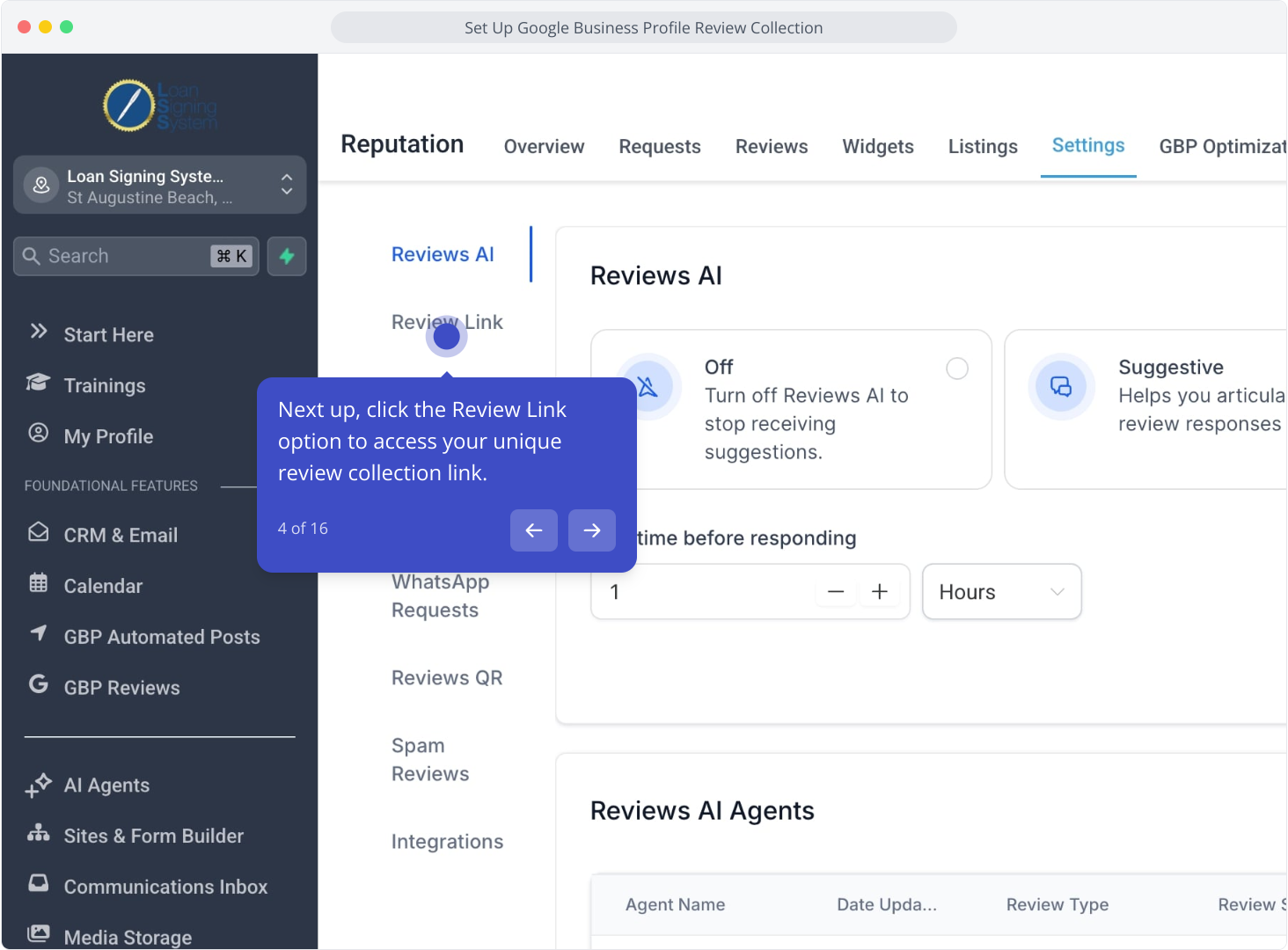
4. Next up, click the Review Link option to access your unique review collection link.
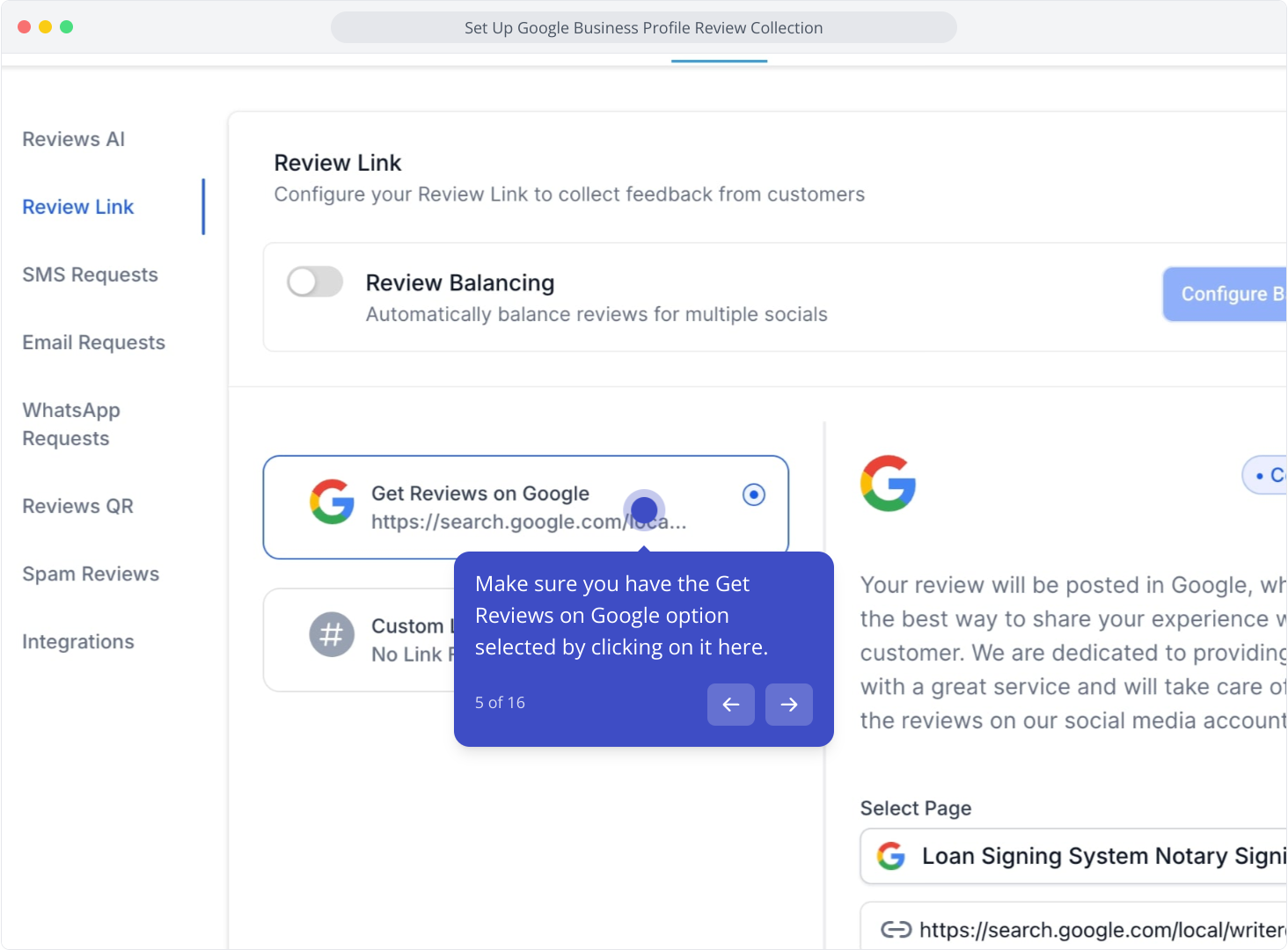
5. Make sure you have the Get Reviews on Google option selected by clicking on it here.
6. Following that, select your Google Business Profile page to configure review collection settings.
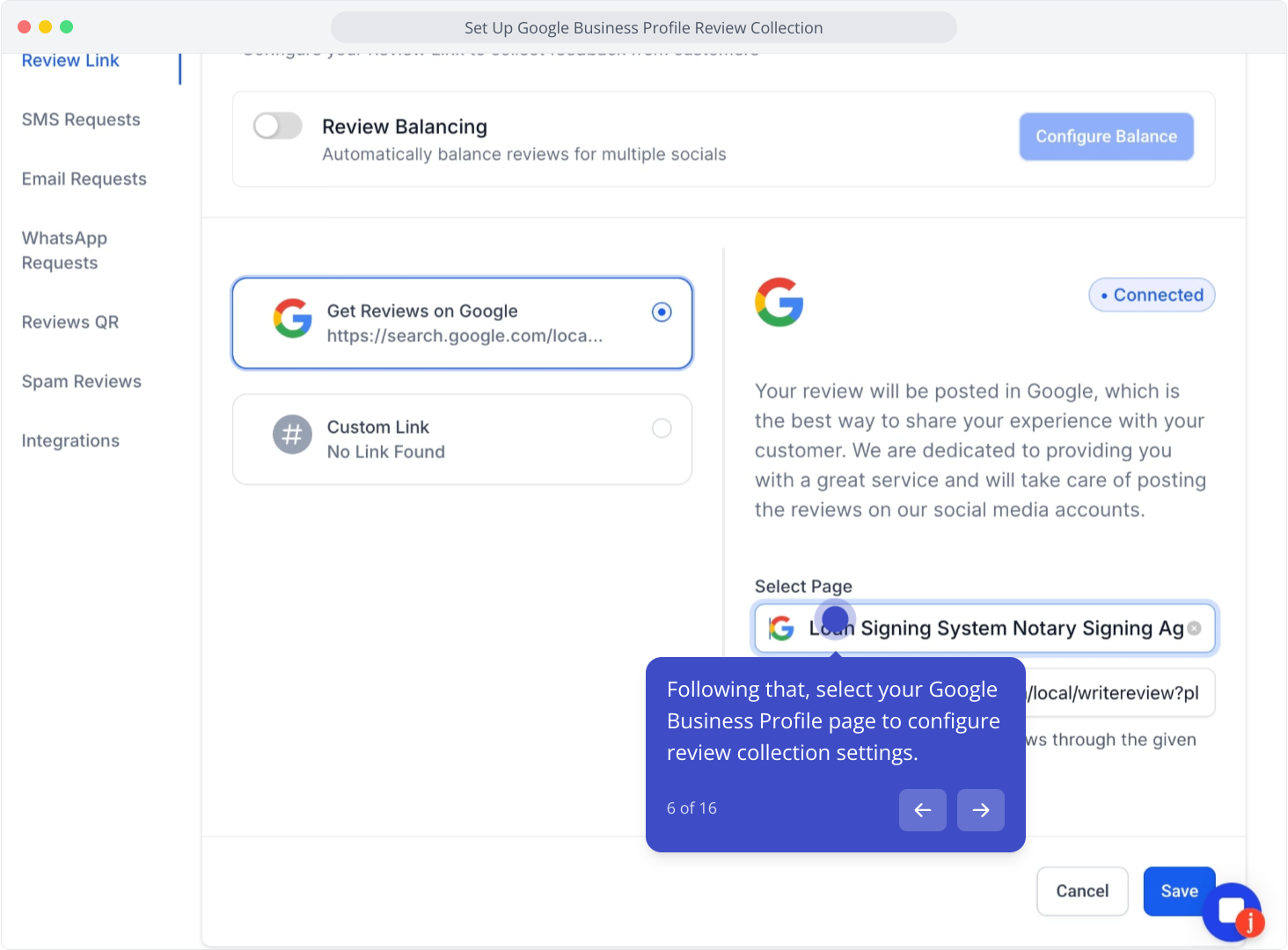
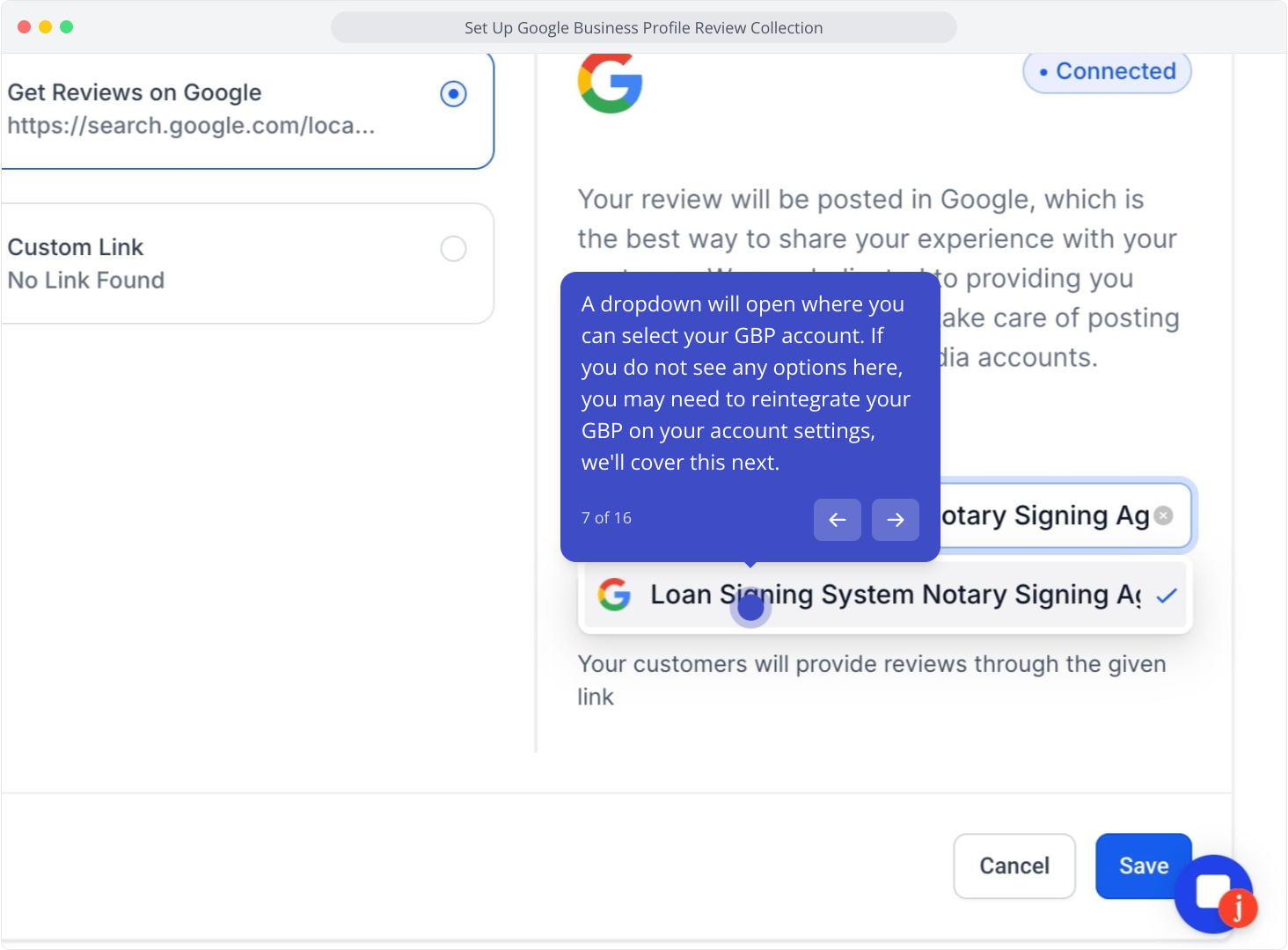
7. A dropdown will open where you can select your GBP account. If you do not see any options here, you may need to reintegrate your GBP on your account settings, we'll cover this next.
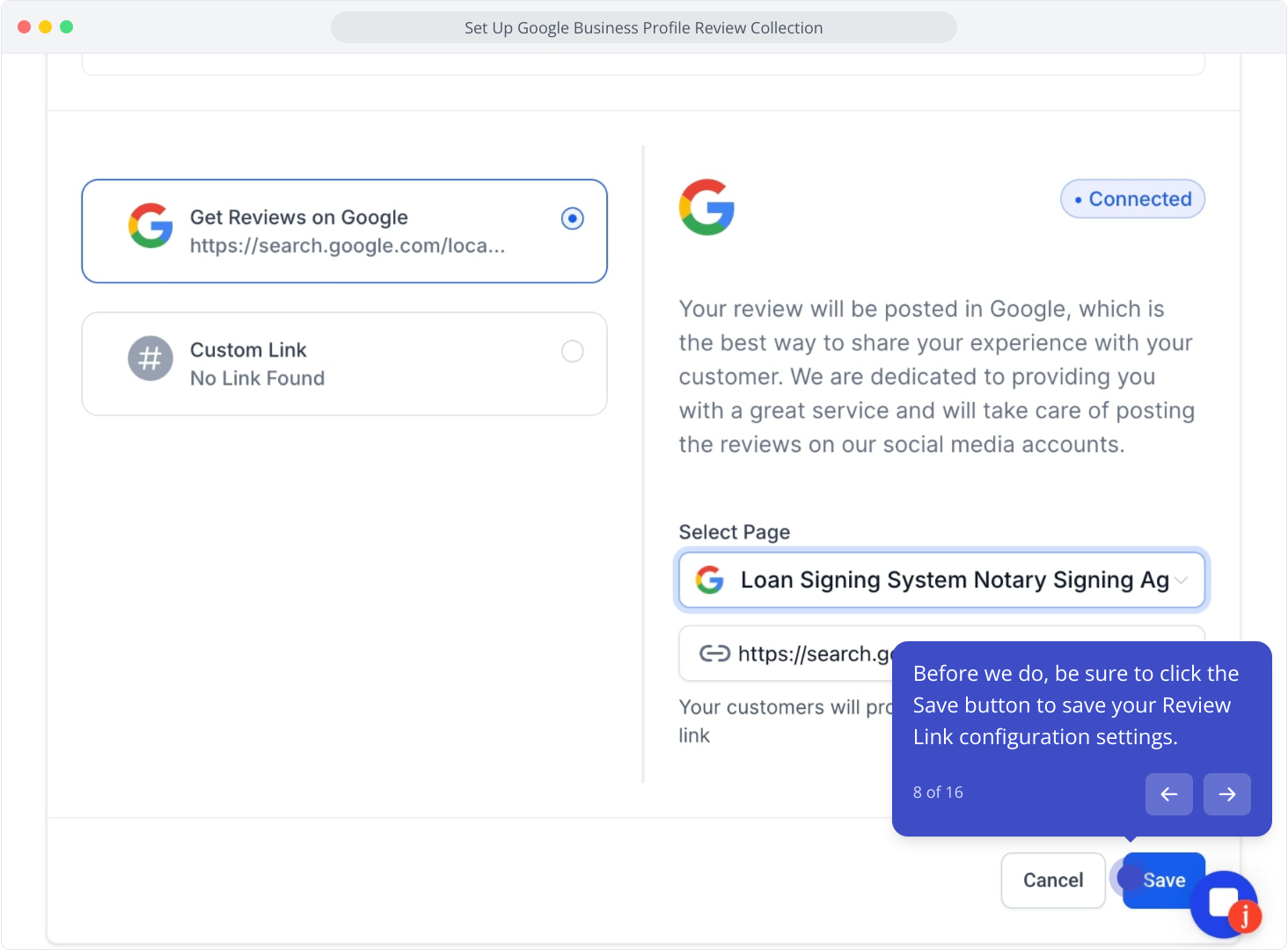
8. Before we do, be sure to click the Save button to save your Review Link configuration settings.
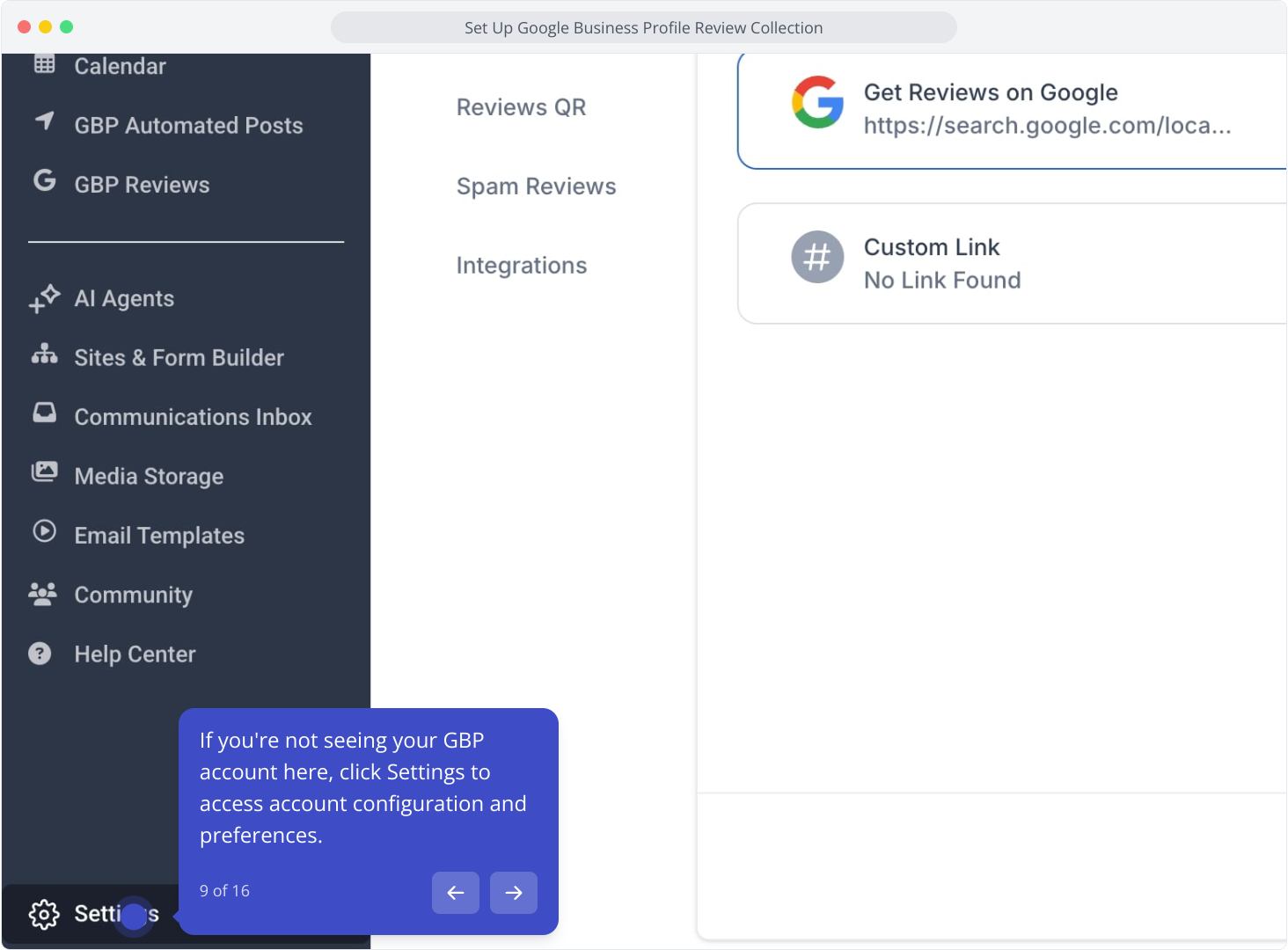
9. If you're not seeing your GBP account here, click Settings to access account configuration and preferences.
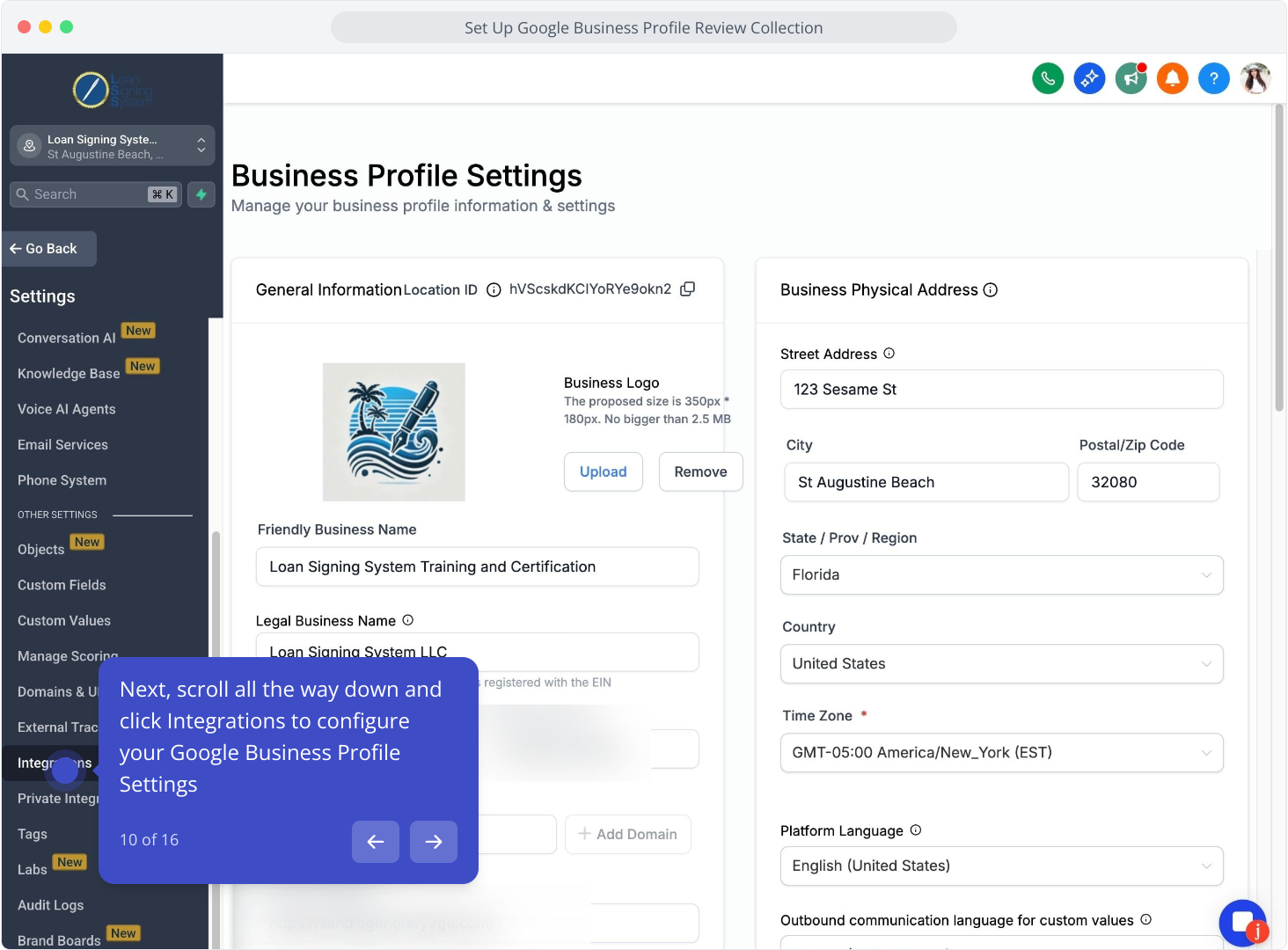
10. Next, scroll all the way down and click Integrations to configure your Google Business Profile Settings
11. Scroll down until you see your Google Business Profile Option and make sure it shows connected, if it doesn't, please reconnect it.
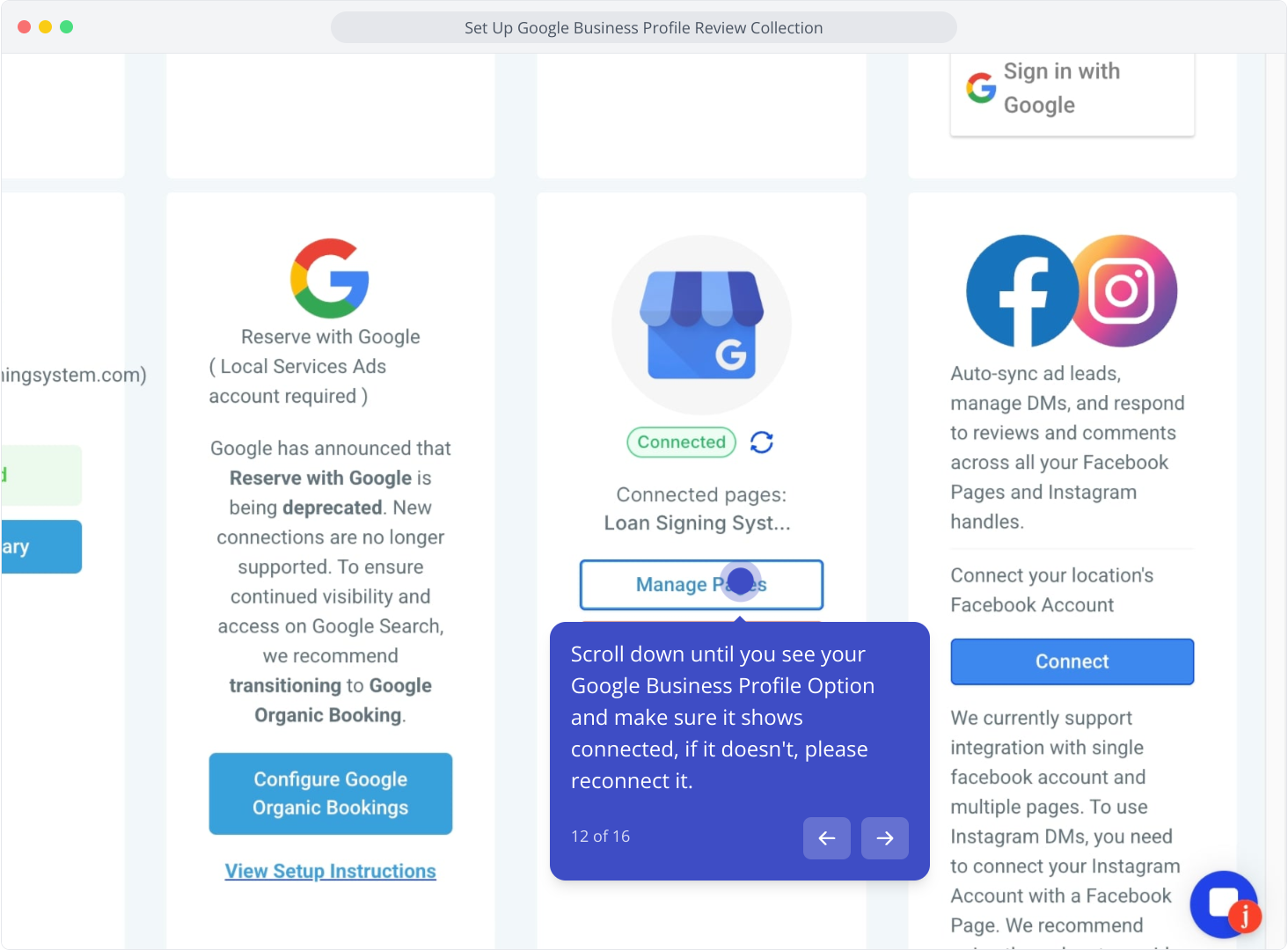
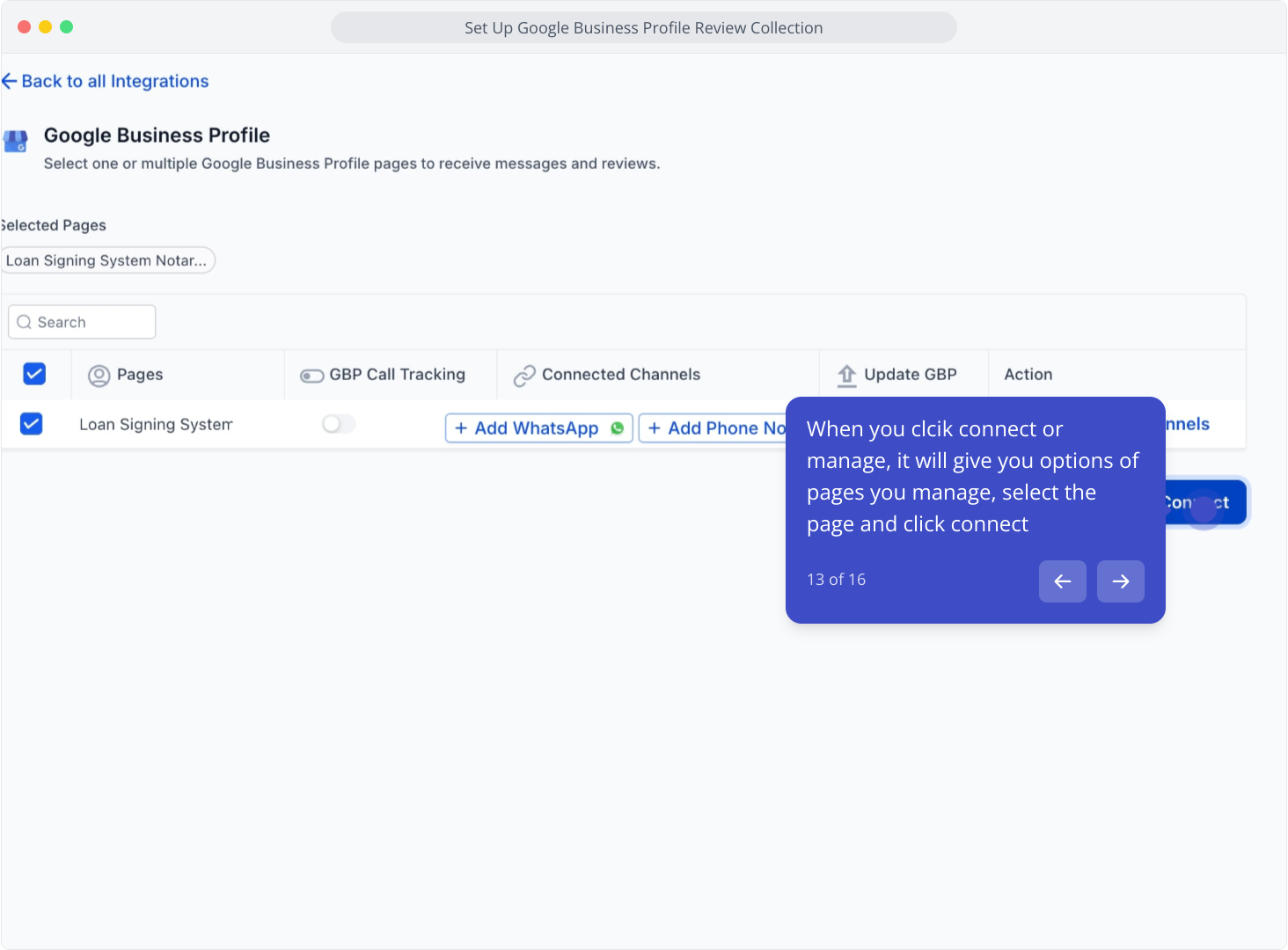
12. When you clcik connect or manage, it will give you options of pages you manage, select the page and click connect
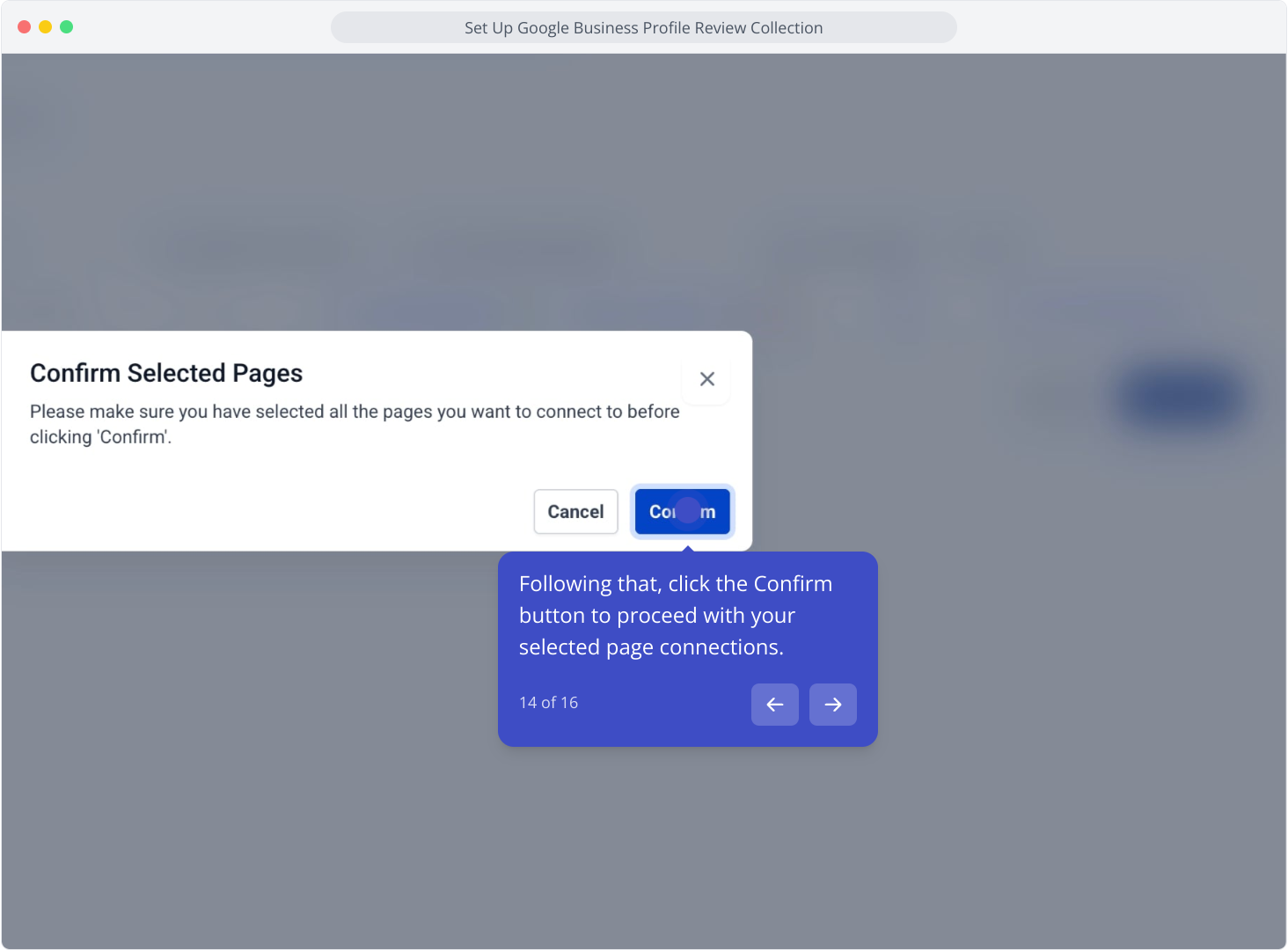
13. Following that, click the Confirm button to proceed with your selected page connections.
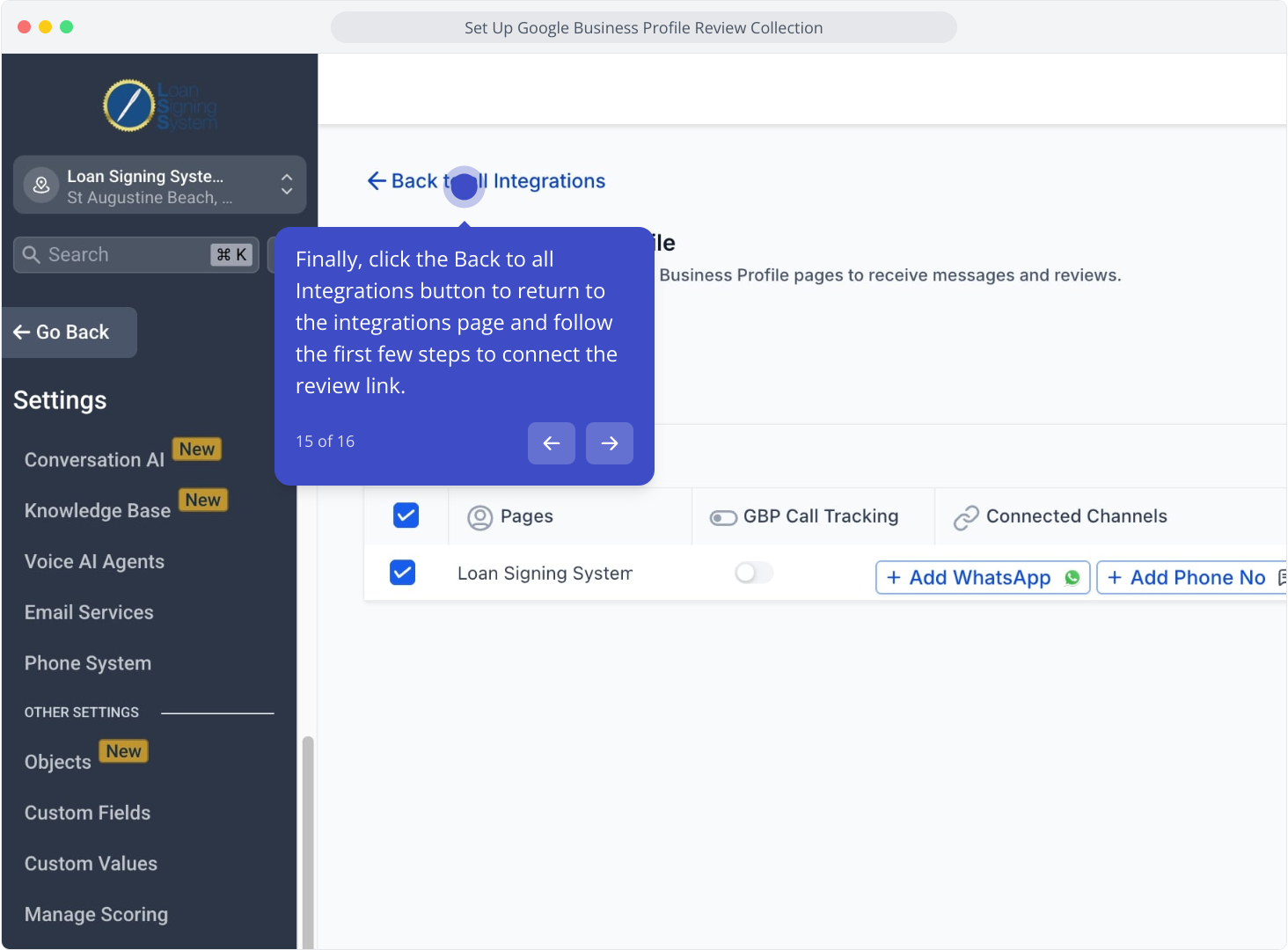
14. Finally, click the Back to all Integrations button to return to the integrations page and follow the first few steps to connect the review link.