Step 1: Log into the Members Area 0:00
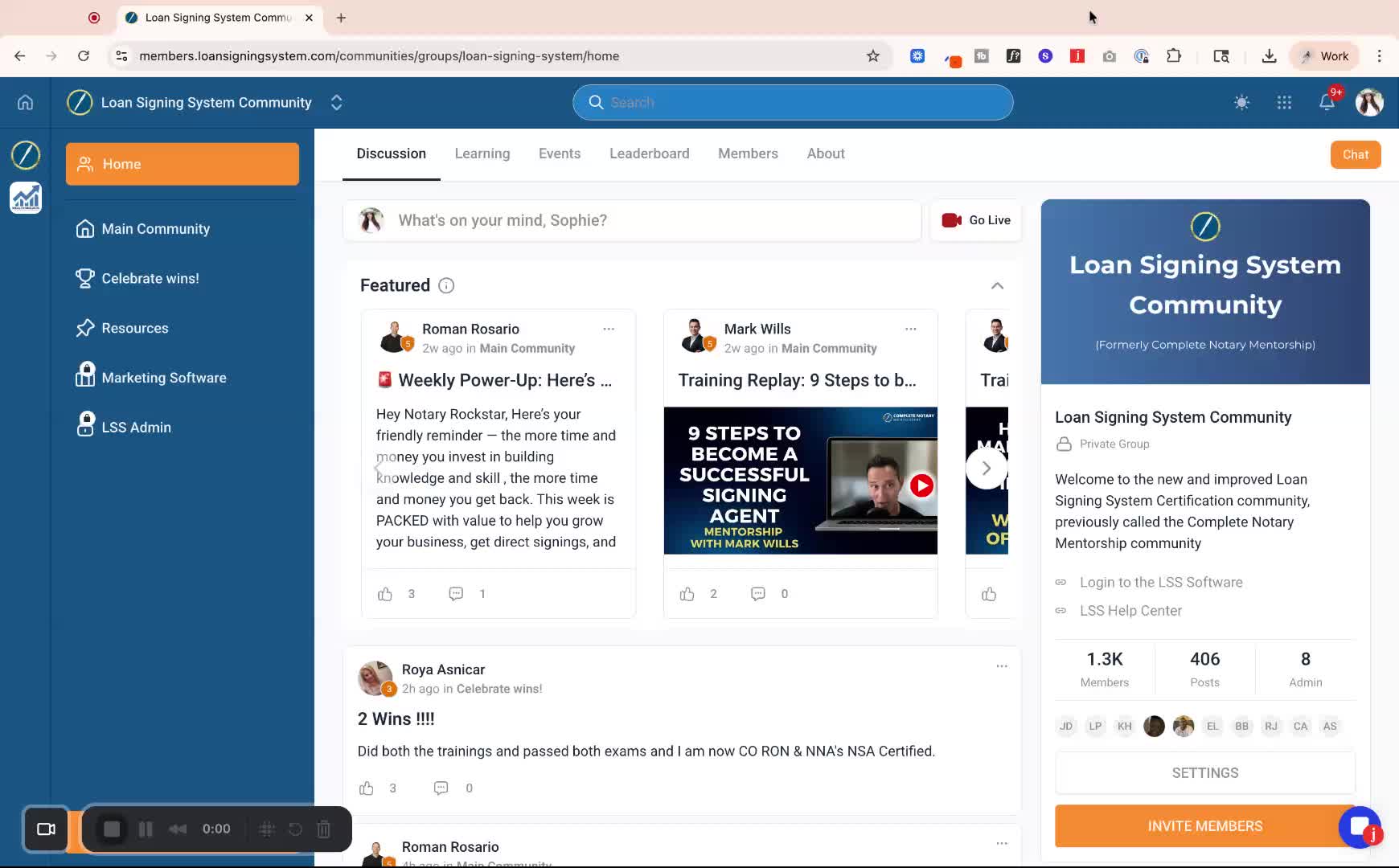
Go to the members area at members.loansigningsystem.com.
Ensure you are logged in.
Step 2: Access the Events Tab 0:16
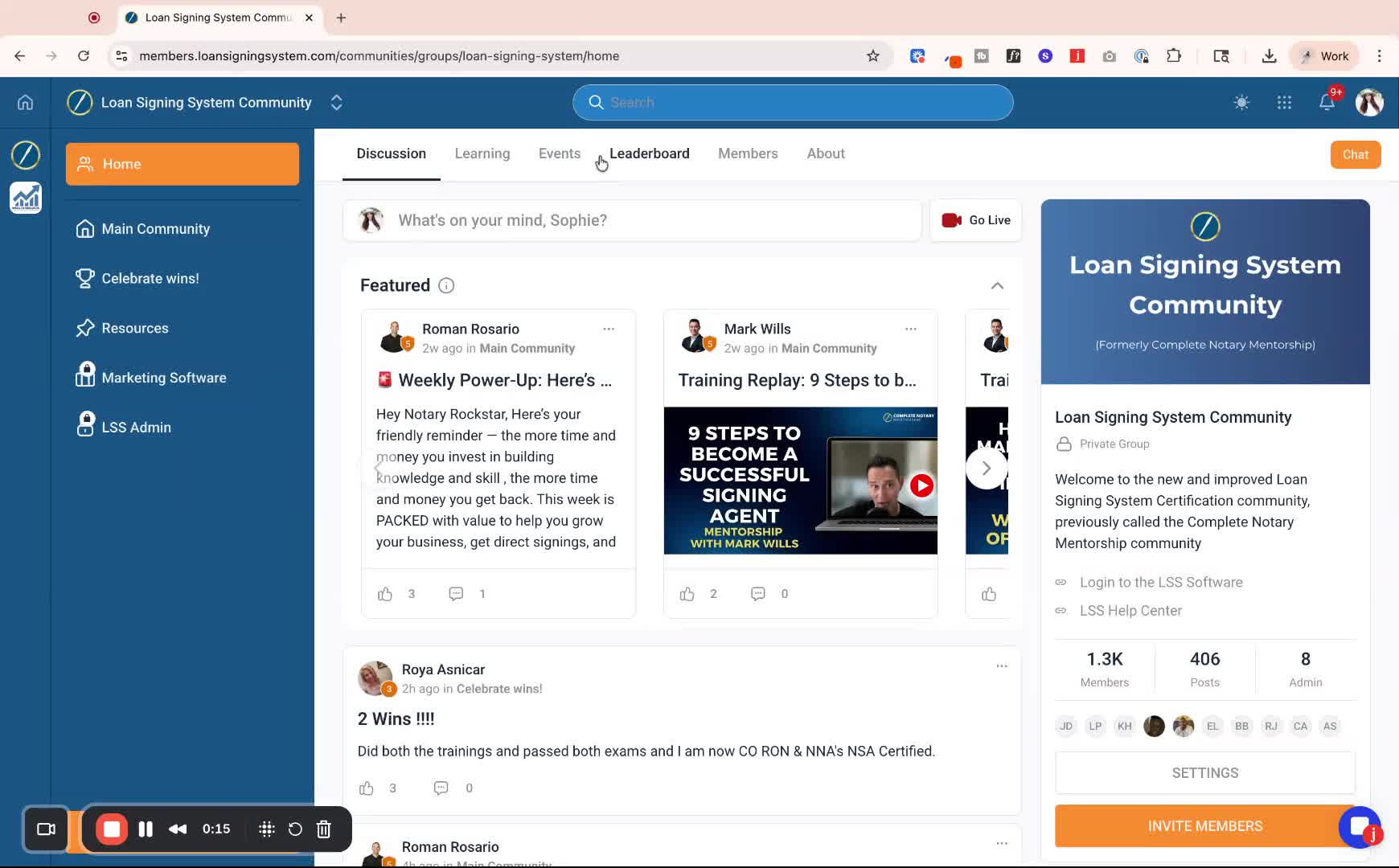
Click on the 'Events' tab located at the top of the page.
Review all upcoming events available to you.
Step 3: Check Event Availability 0:25
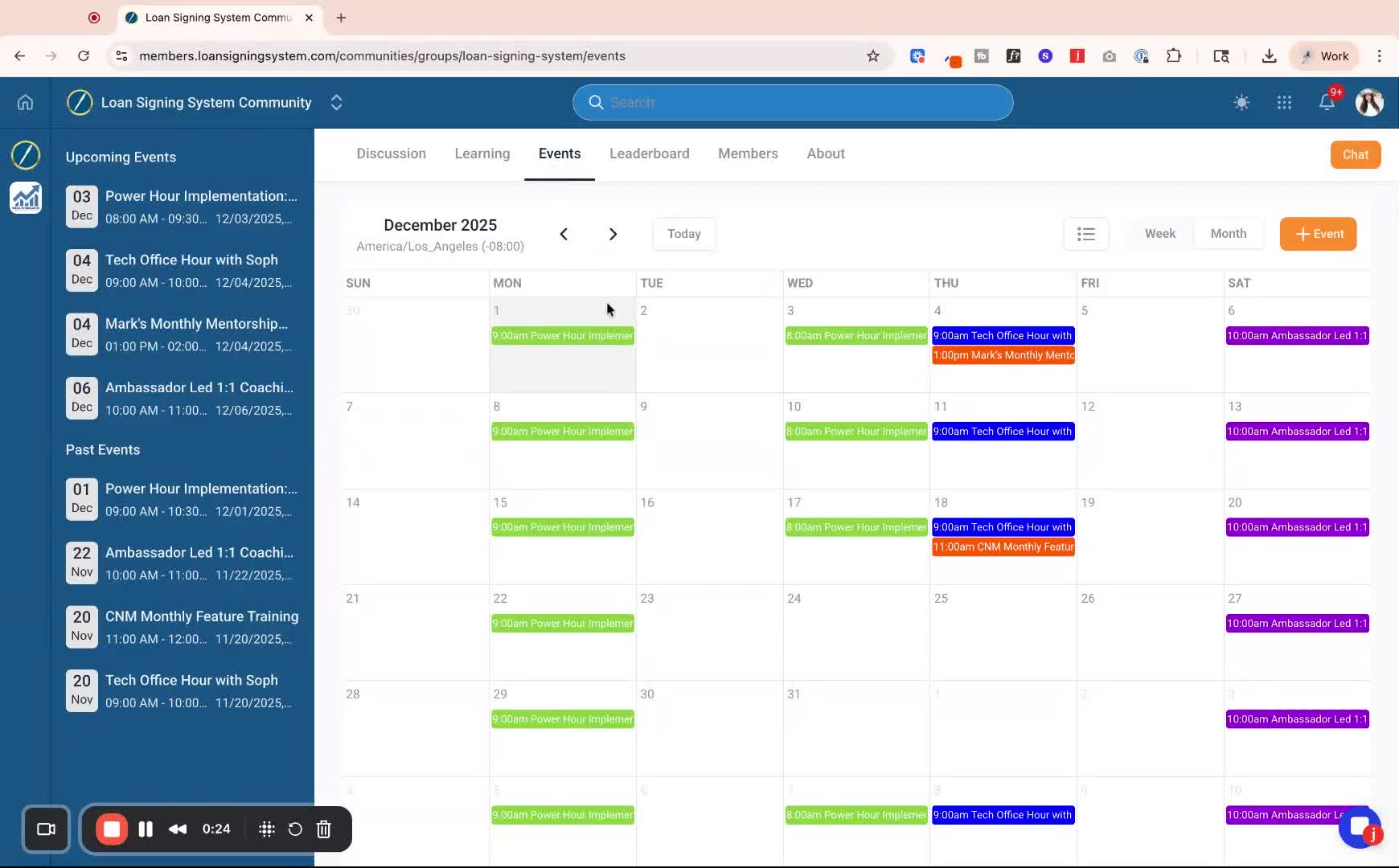
Note that event availability may vary based on your program level.
Step 4: Register for an Event 0:32
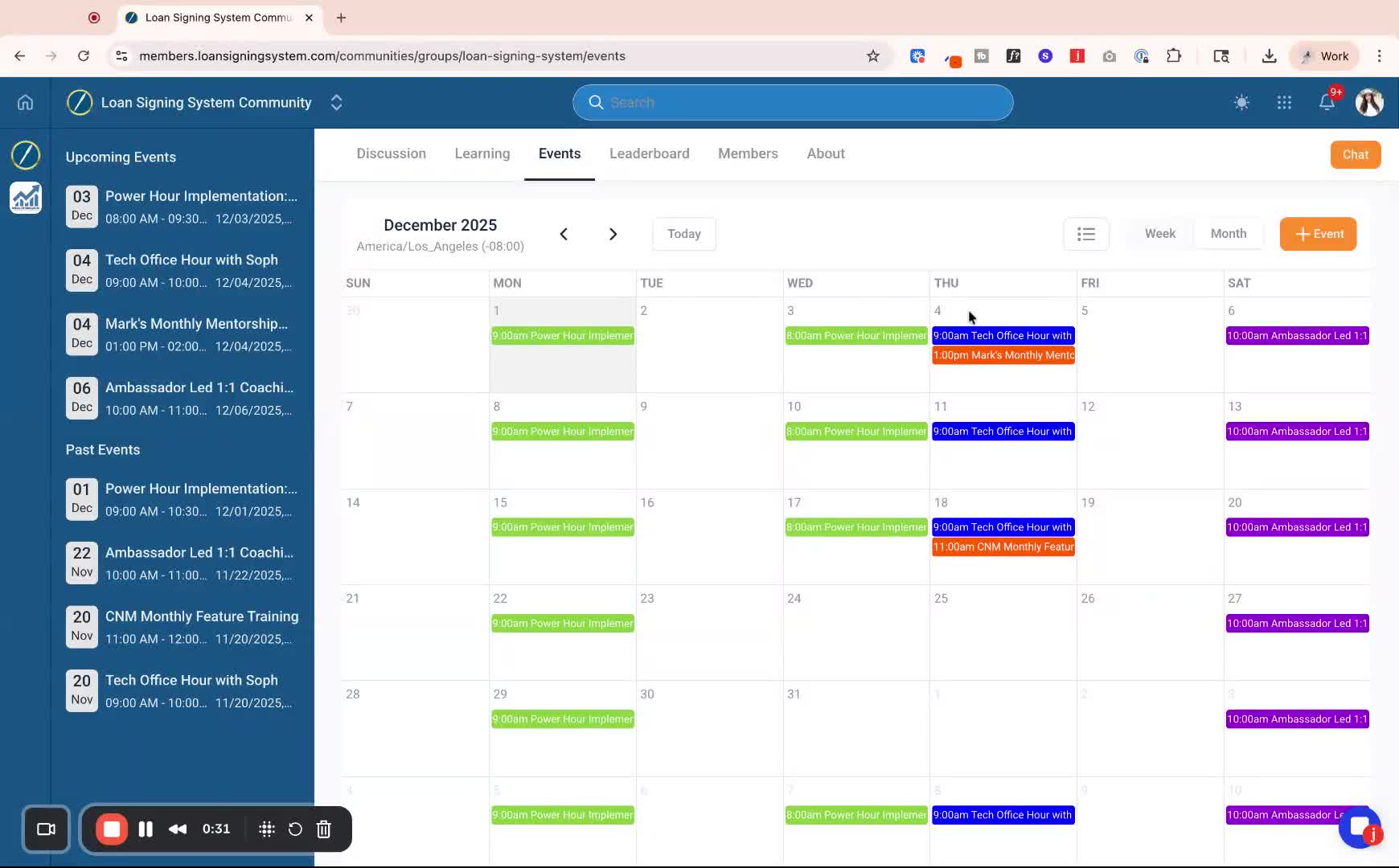
Click on the specific event you wish to attend.
Click the 'Register' button to sign up.
Step 5: Sync Events to Your Calendar 0:42
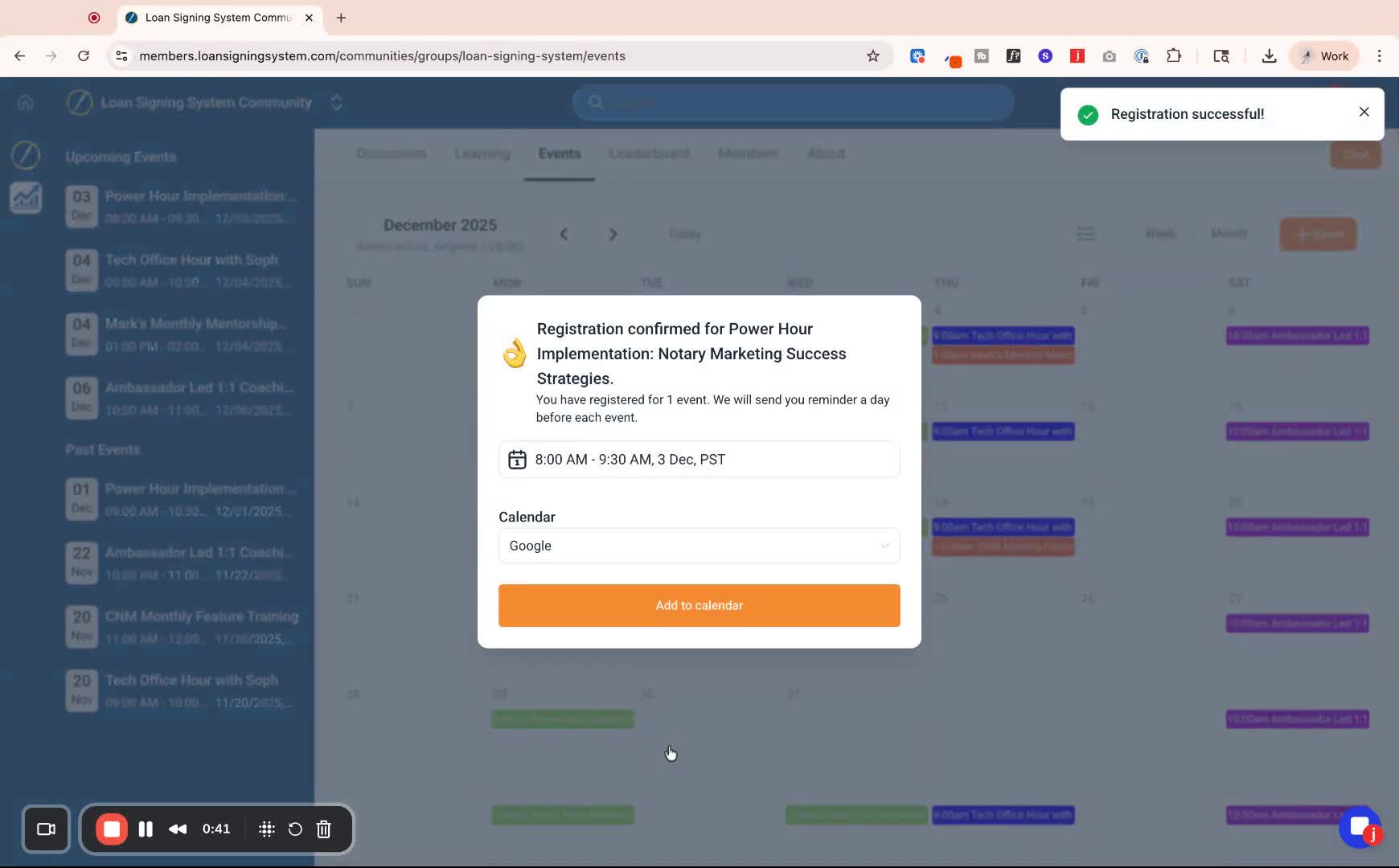
After registering, choose the calendar you want to sync the events to (e.g., Google Calendar).
Click 'Add to Calendar' to create a new event.
Step 6: Save the Event 1:01
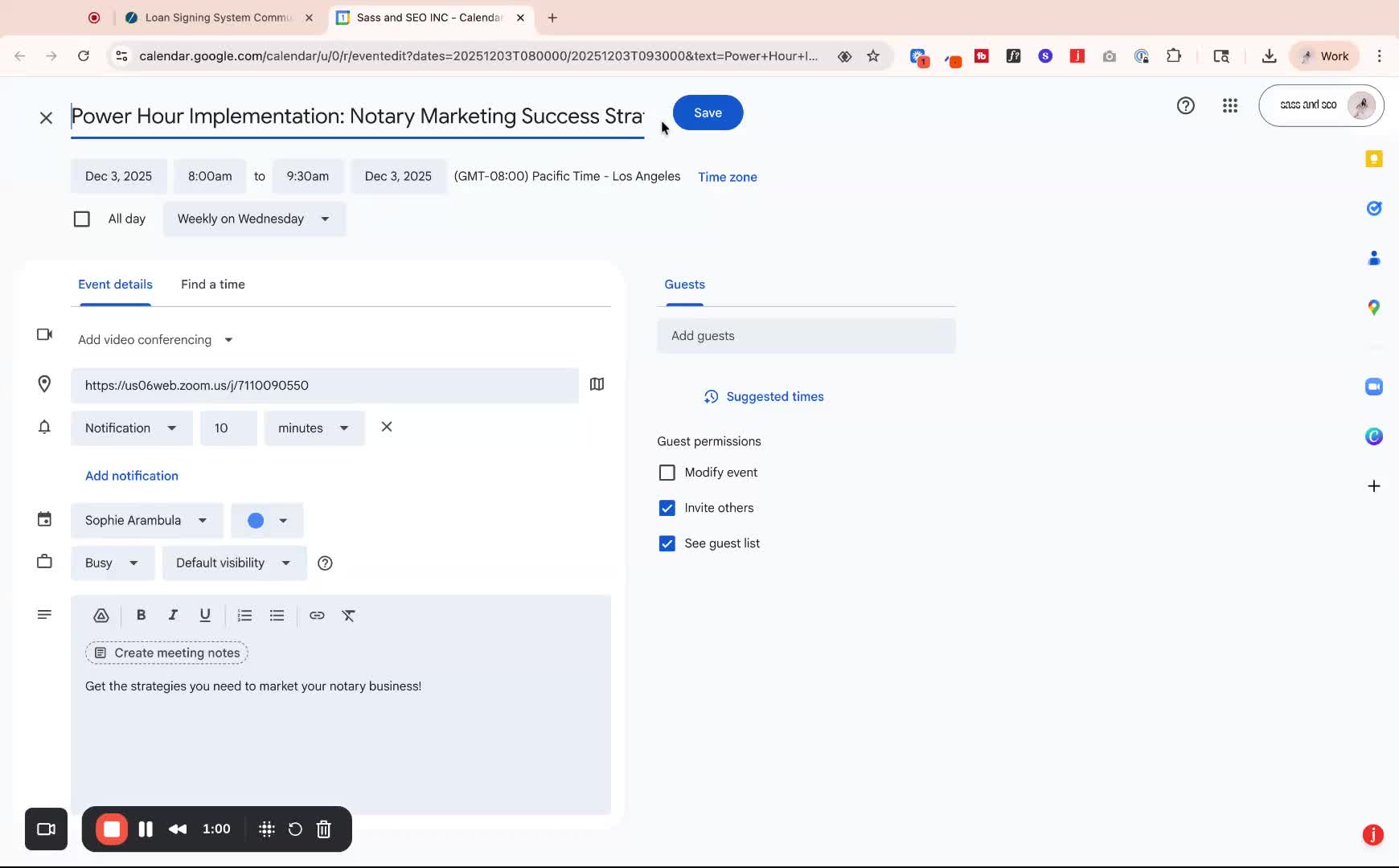
Hit 'Save' to add the event to your personal calendar.
Step 7: Access Zoom Links 1:08
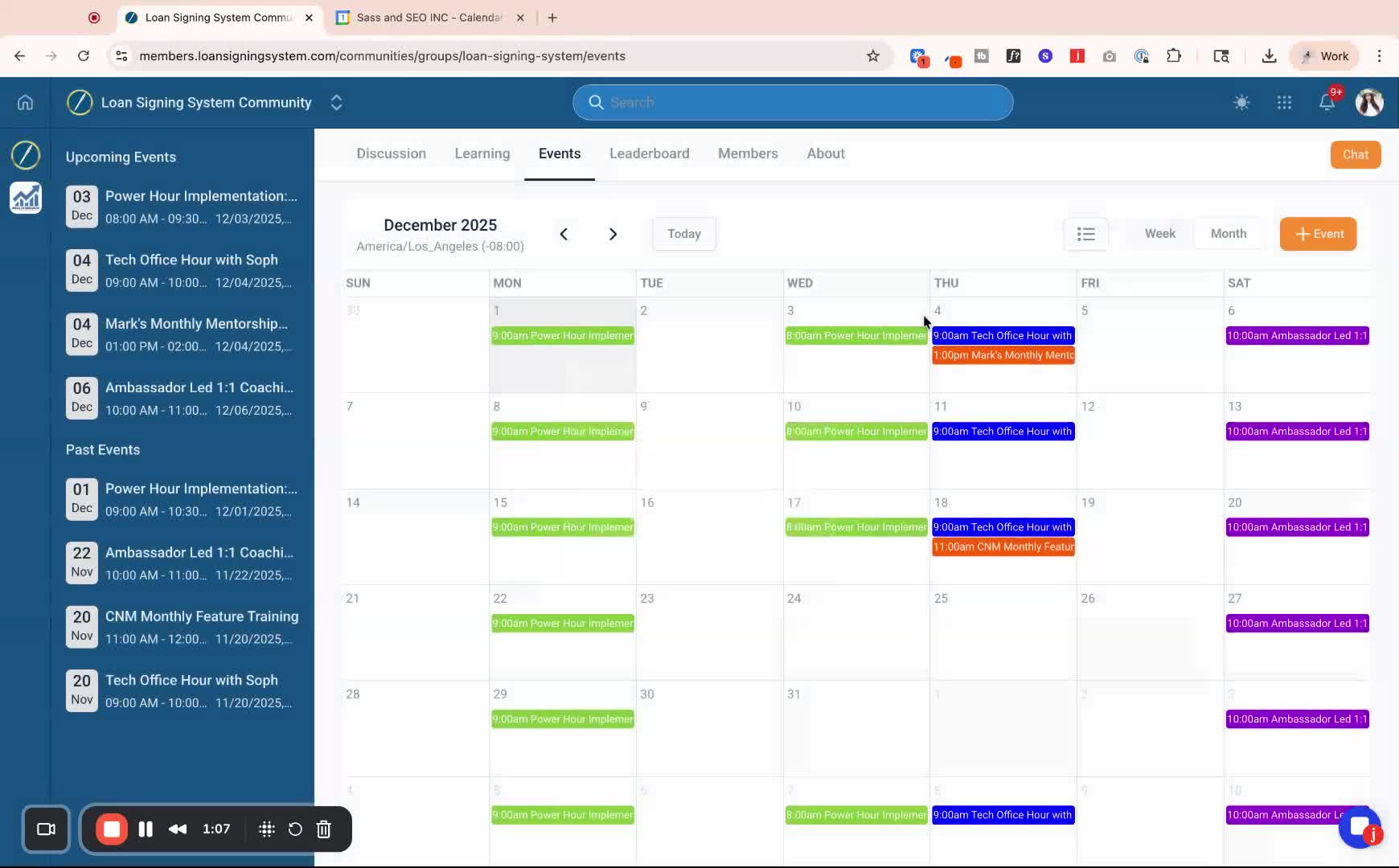
After registration, you will see the Zoom link for the event.
Use this link to join the event.
Step 8: Register for Non-Reoccurring Events 1:17
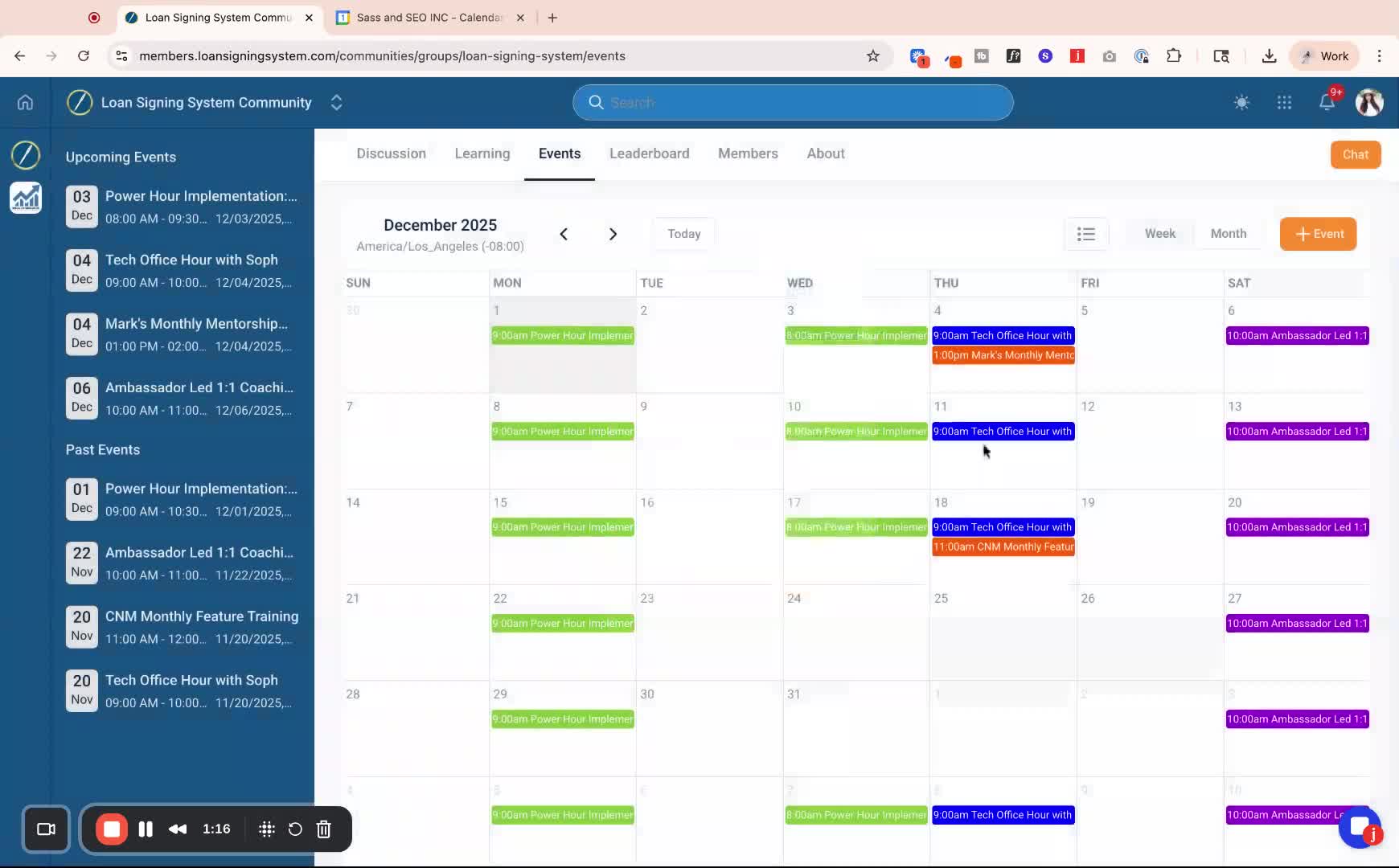
For events like the MARC Mentorship, register each time they occur as they do not automatically sync.
Step 9: Check for New Events Regularly 1:34
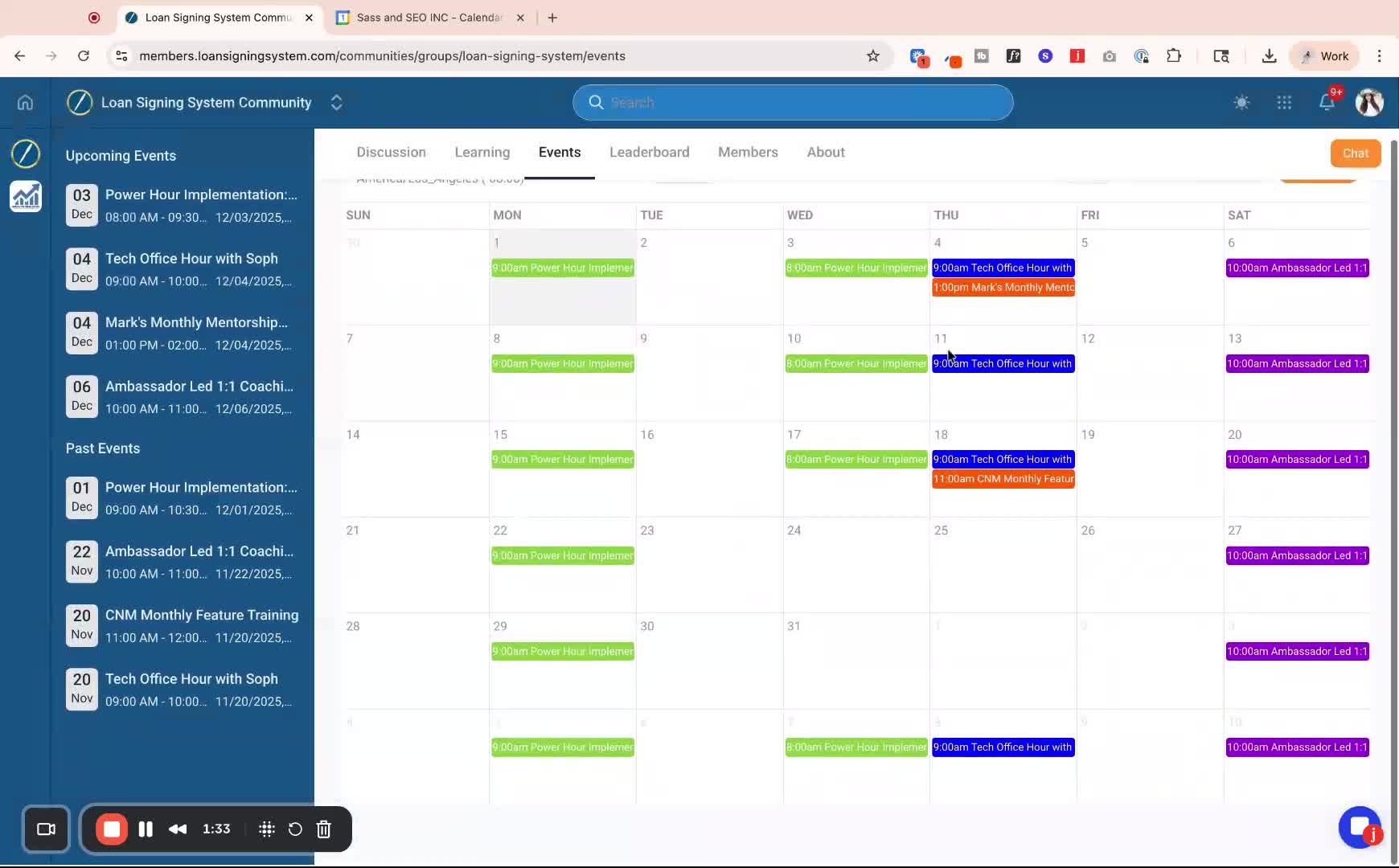
Regularly check the calendar weekly or monthly for new events.
Step 10: Reach Out for Support 1:45
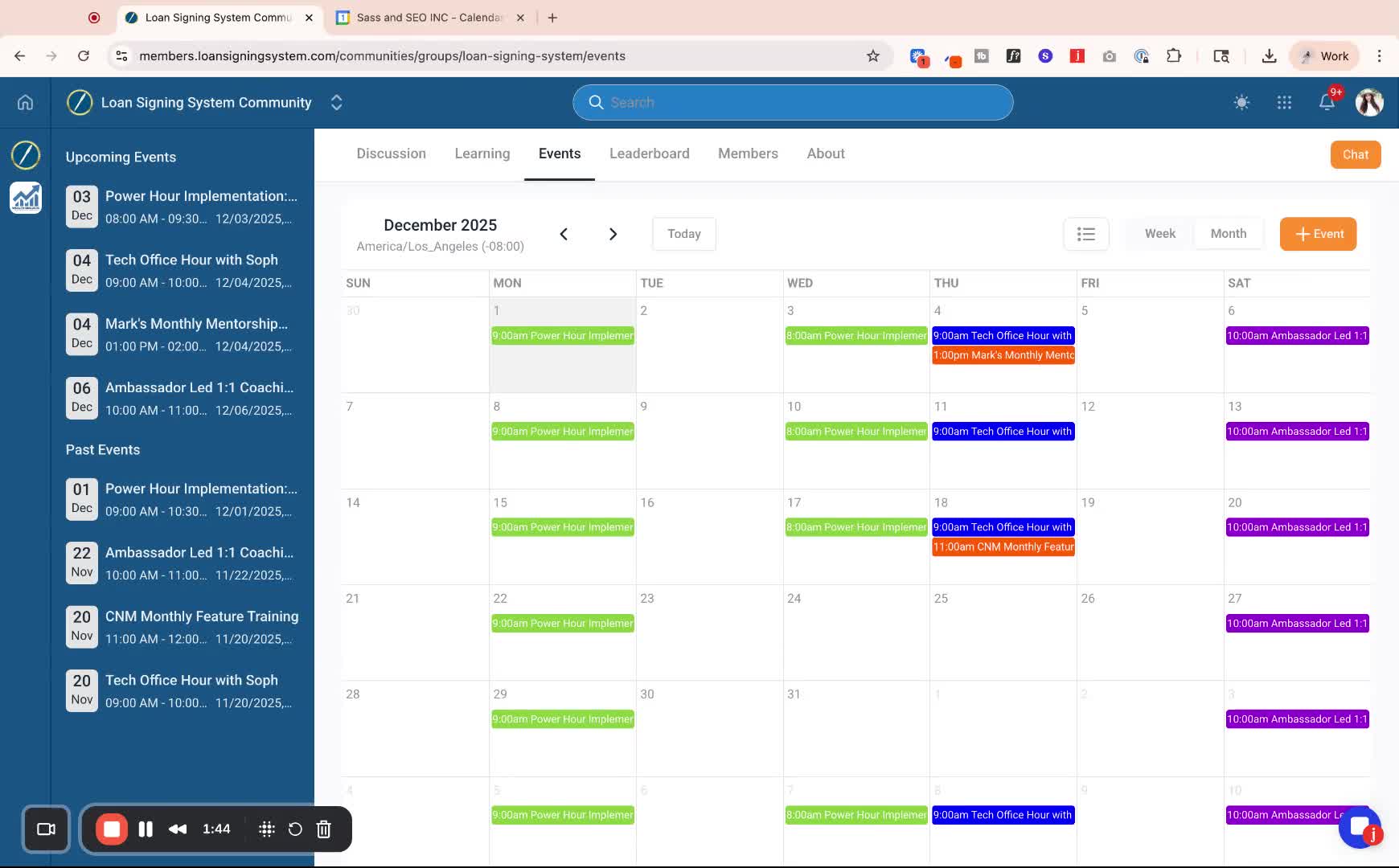
If you have questions, use chat support or ask in the main discussion panel.